
Completing Patient Documentation and Visit Records
Learn how to efficiently navigate your atulo mobile app; This guide walks you through the essential steps to confirm visit details and ensure accurate record completion for your daily tasks.
Download the full Training Guide (PDF)Sign in to mobile app
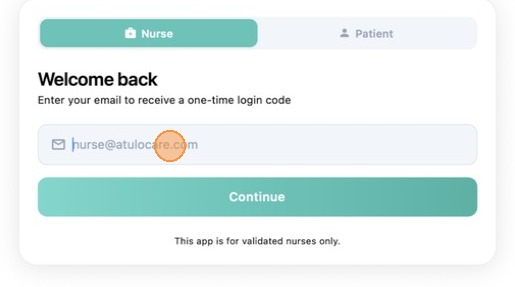
View step-by-step documentTip: Enter your email address to get an OTP code to login to app dashboard.
Fill in your email address.
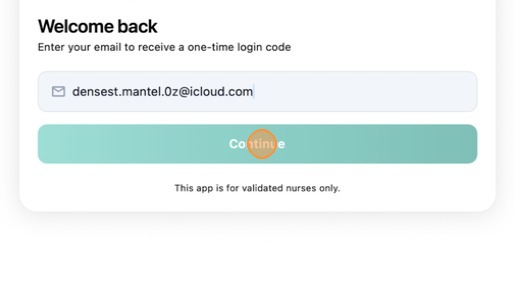
Hit ‘Continue’ to log in to your app dashboard.
Accepting a new Treatment
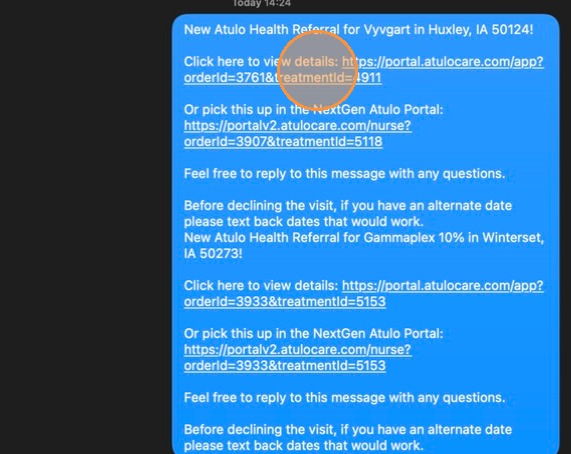
View step-by-step documentTip: A new order treatment will come to your mobile as SMS.
Click the first link to open.
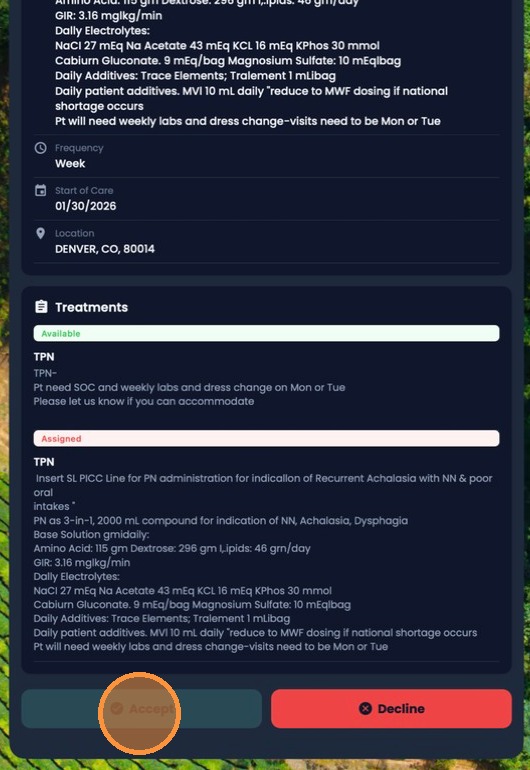
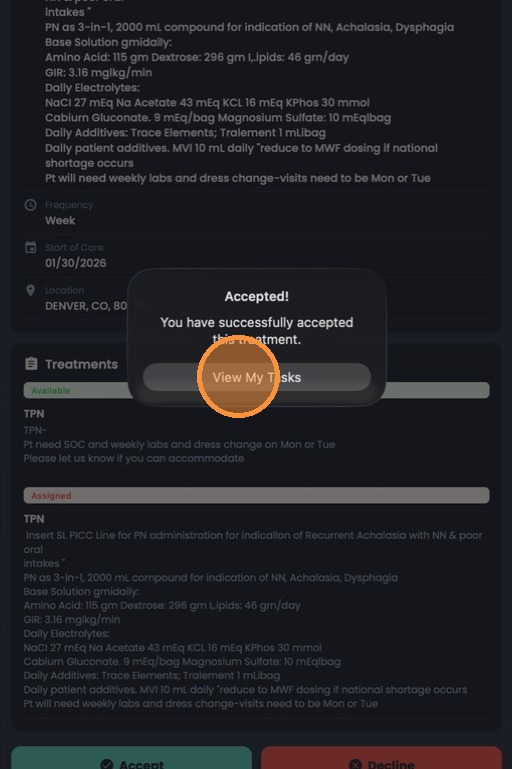
Click ‘Accept’ to accept the treatment for the patient.
Click ‘View My Tasks’ to close.
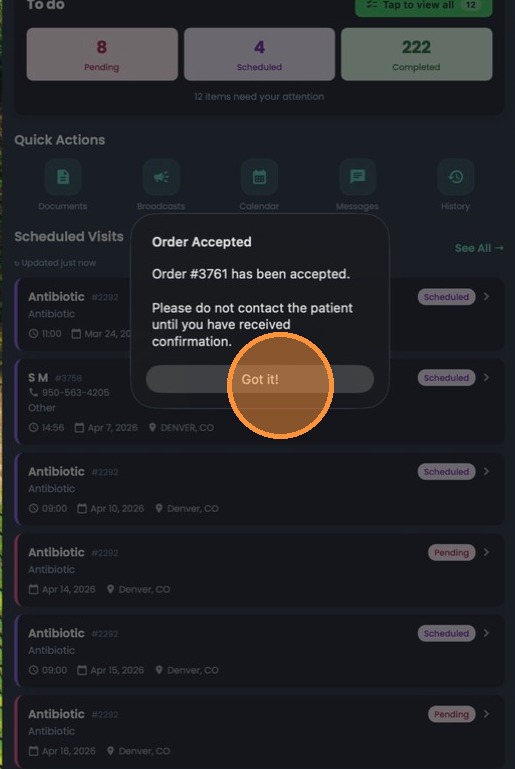
Click ‘Got it!’.
Scheduling a New Visit
View step-by-step documentTip: Schedule your visits from the app Home Screen.
Alert: Pending visits MUST be scheduled before seeing a patient.
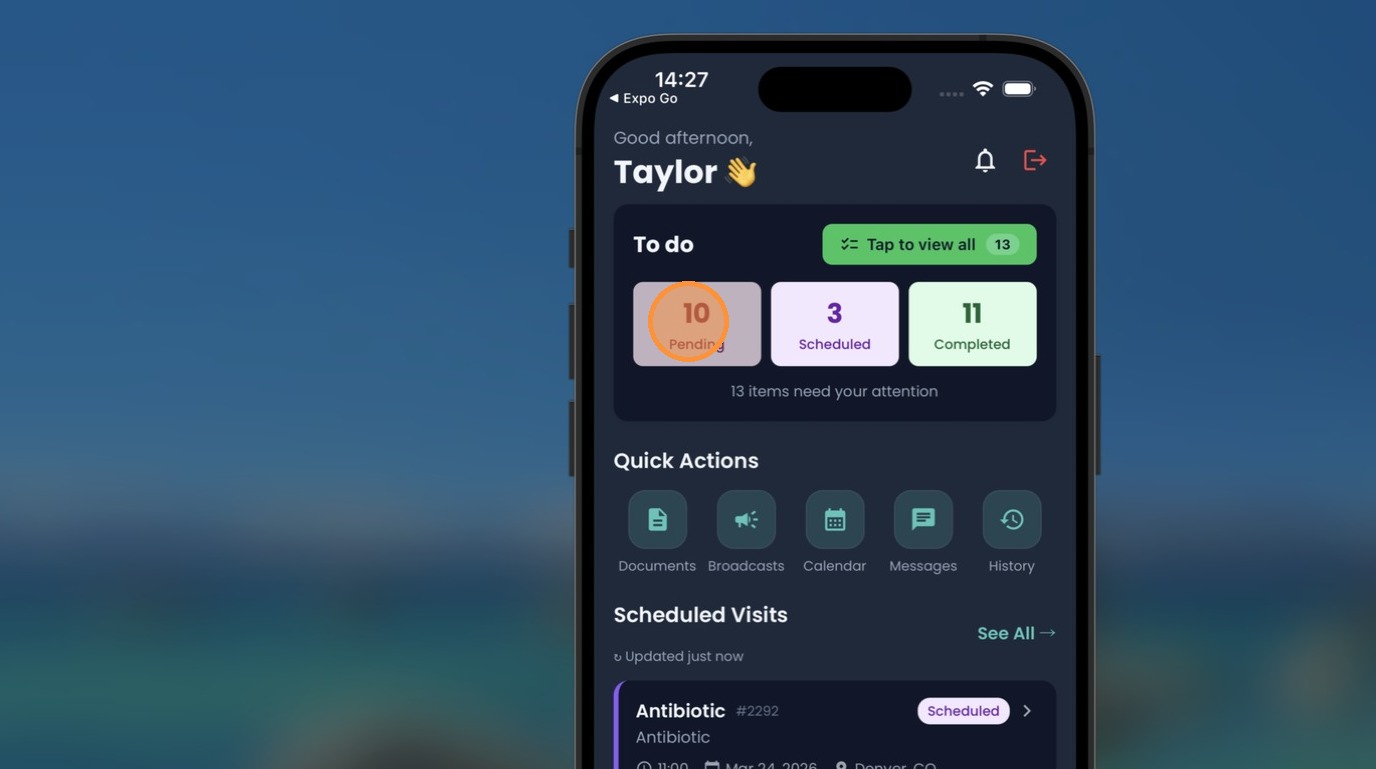
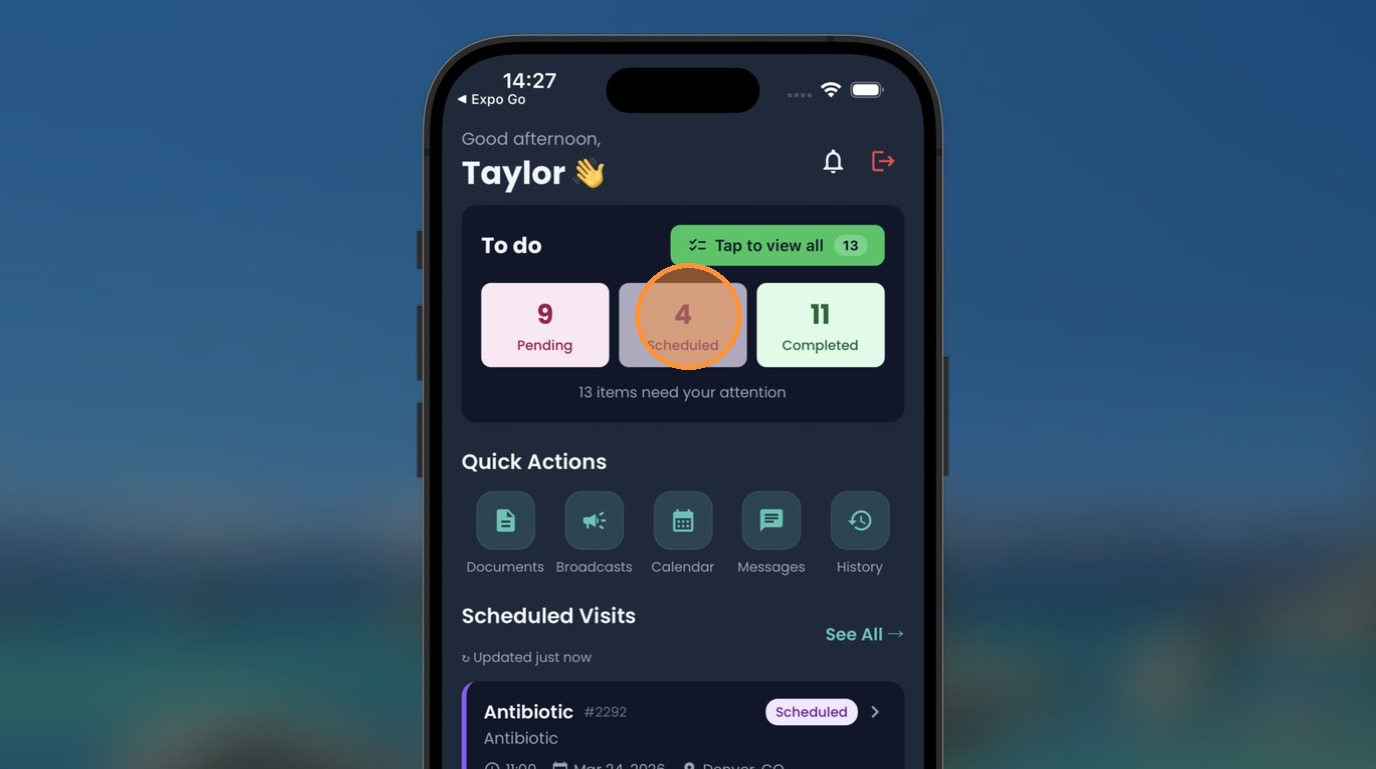
Tap on ‘Pending’, keep an eye on the current scheduled count.
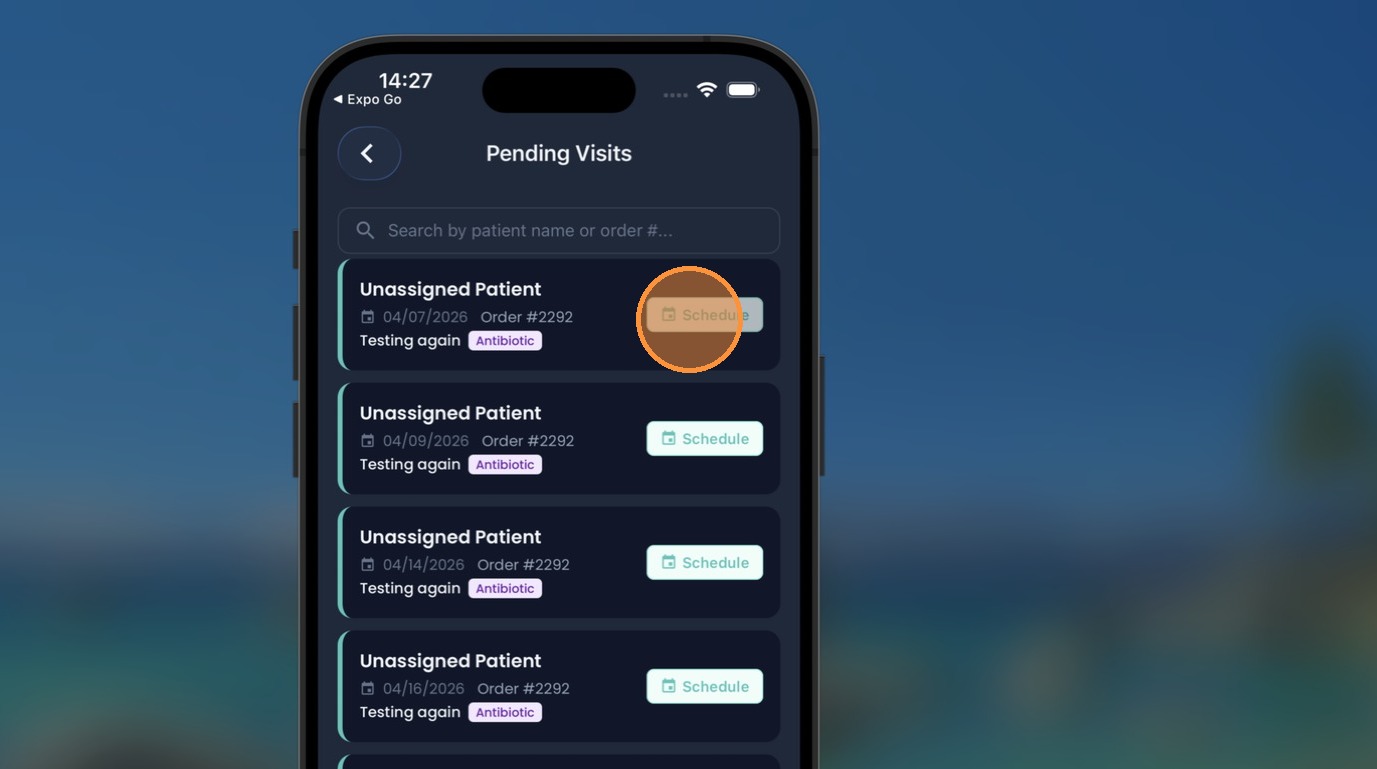
On the visit you want to schedule, click ‘Schedule’.
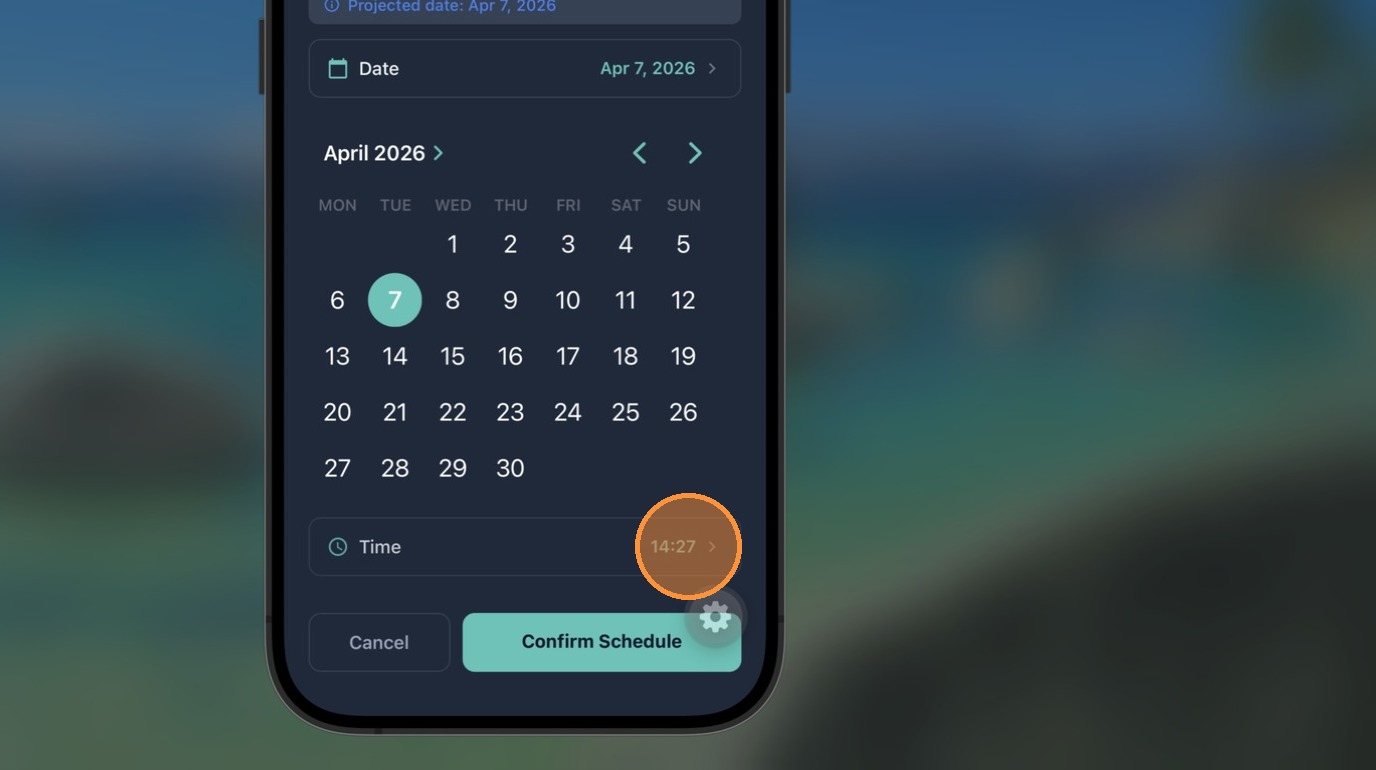
Tap to open the date and time picker.
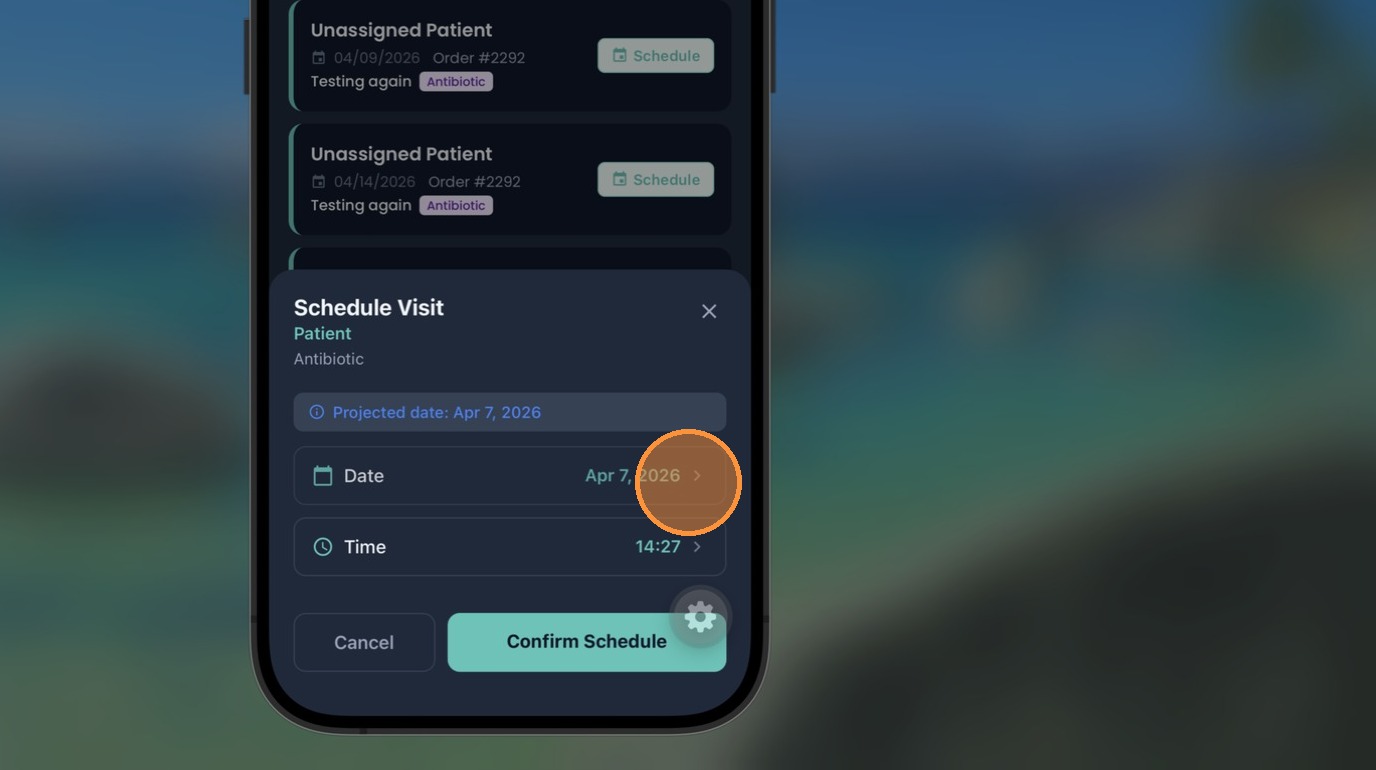
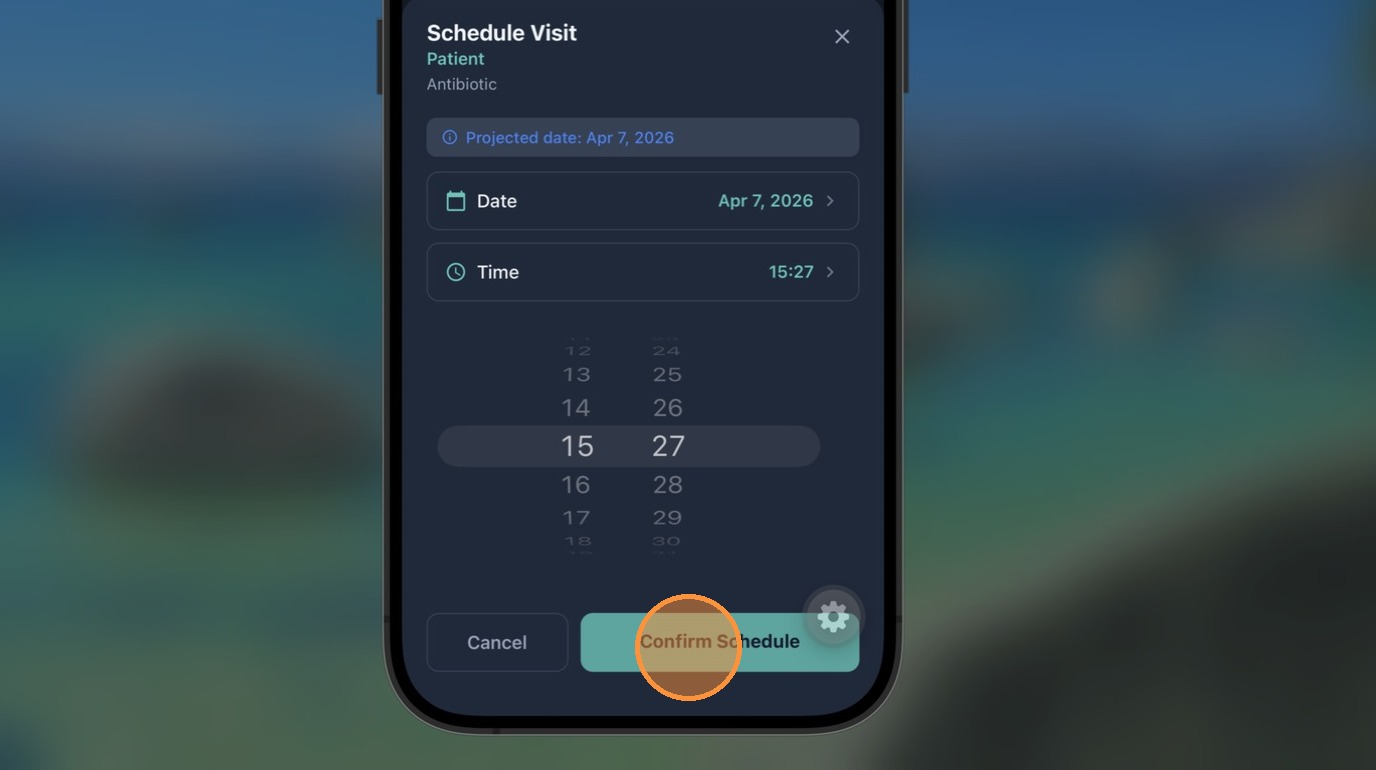
Select suitable date and time.
Tap on ‘Confirm Schedule’ to complete scheduling.
Tap ‘›’ to return to Home Screen.

Notice the count is now ‘4’ — in your case, it can be any number. Now tap ‘Schedule’ to proceed.
Clocking In on a Visit
View step-by-step documentTip: Manage a scheduled visit by clocking in when you’re seeing the patient. You will need to provide today’s date and time to begin!
Tap on the patient card.
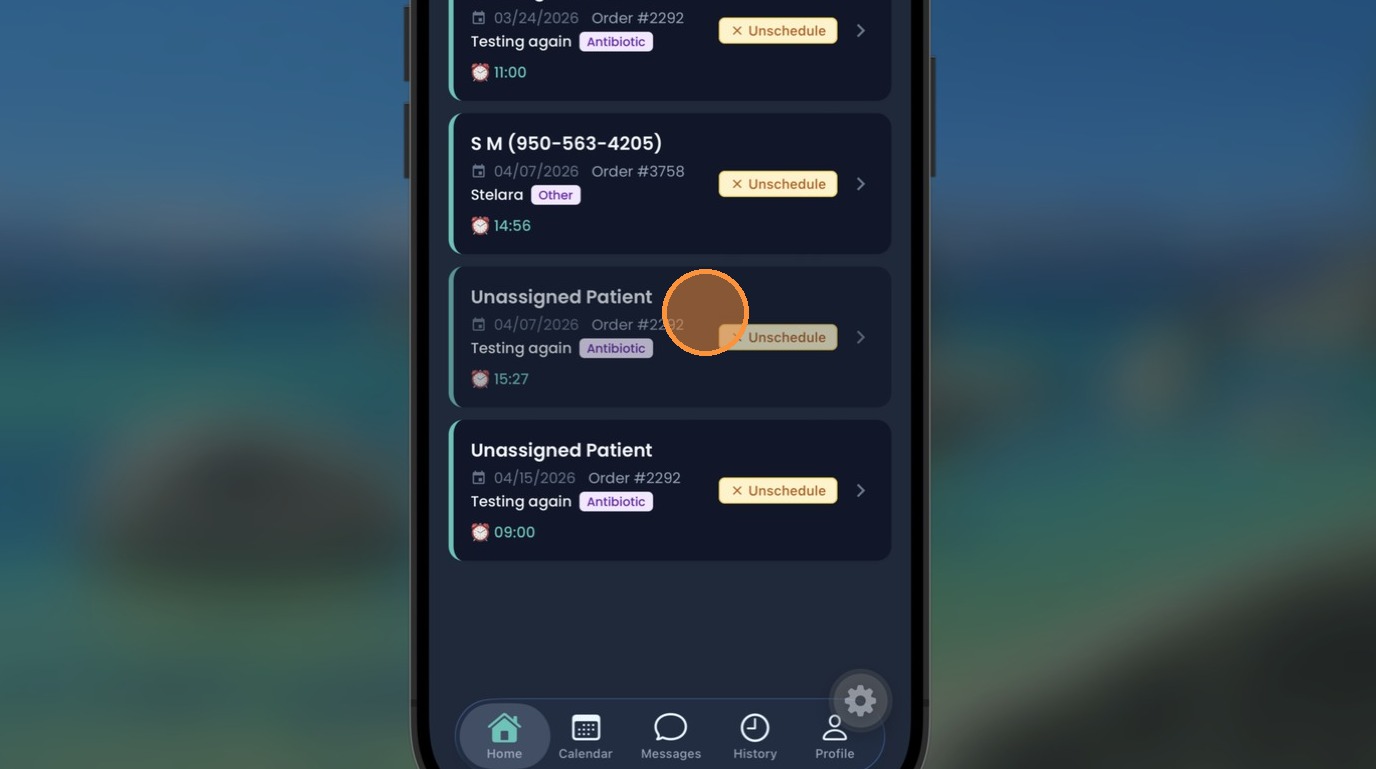
Tap on ‘Clock In’.
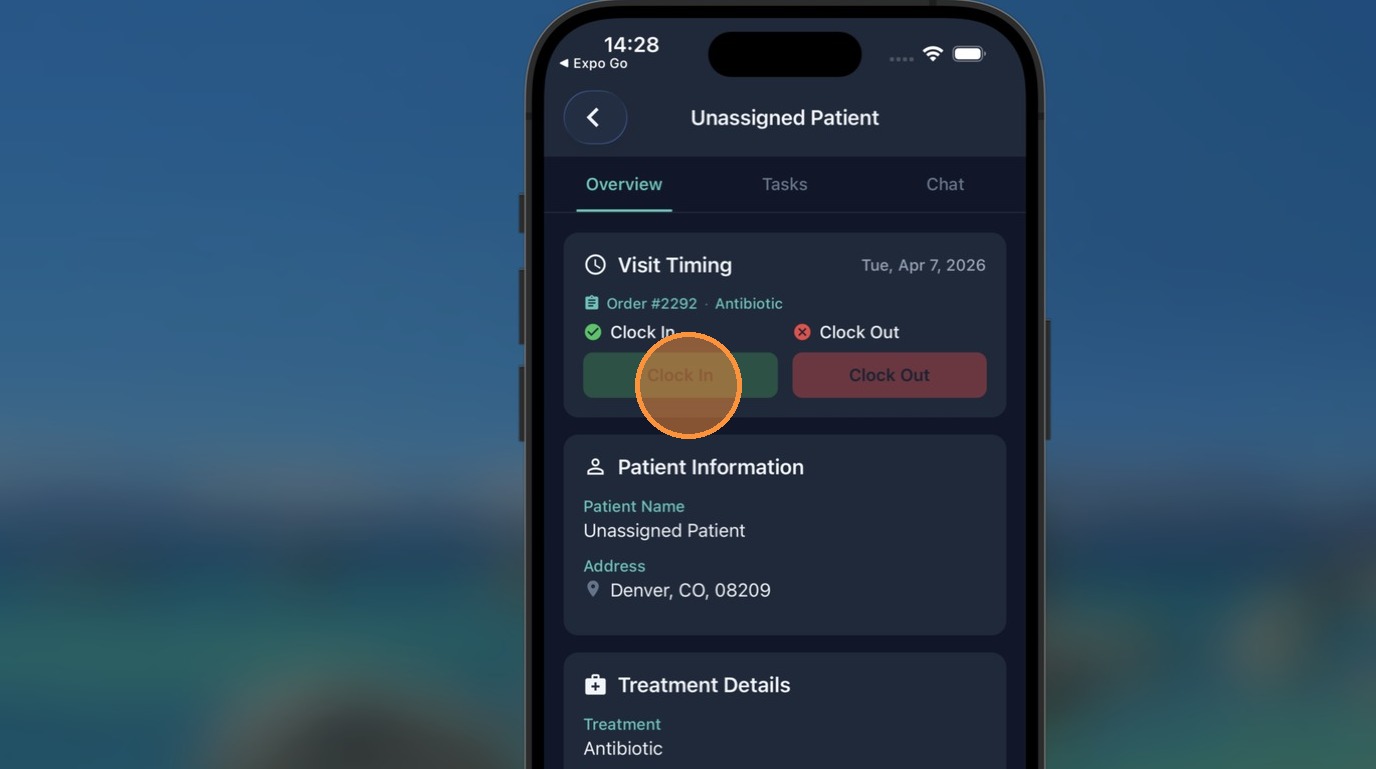
Select your date of visit or leave as it was projected by the system, select a clocked in time and tap on ‘Done’ to save.
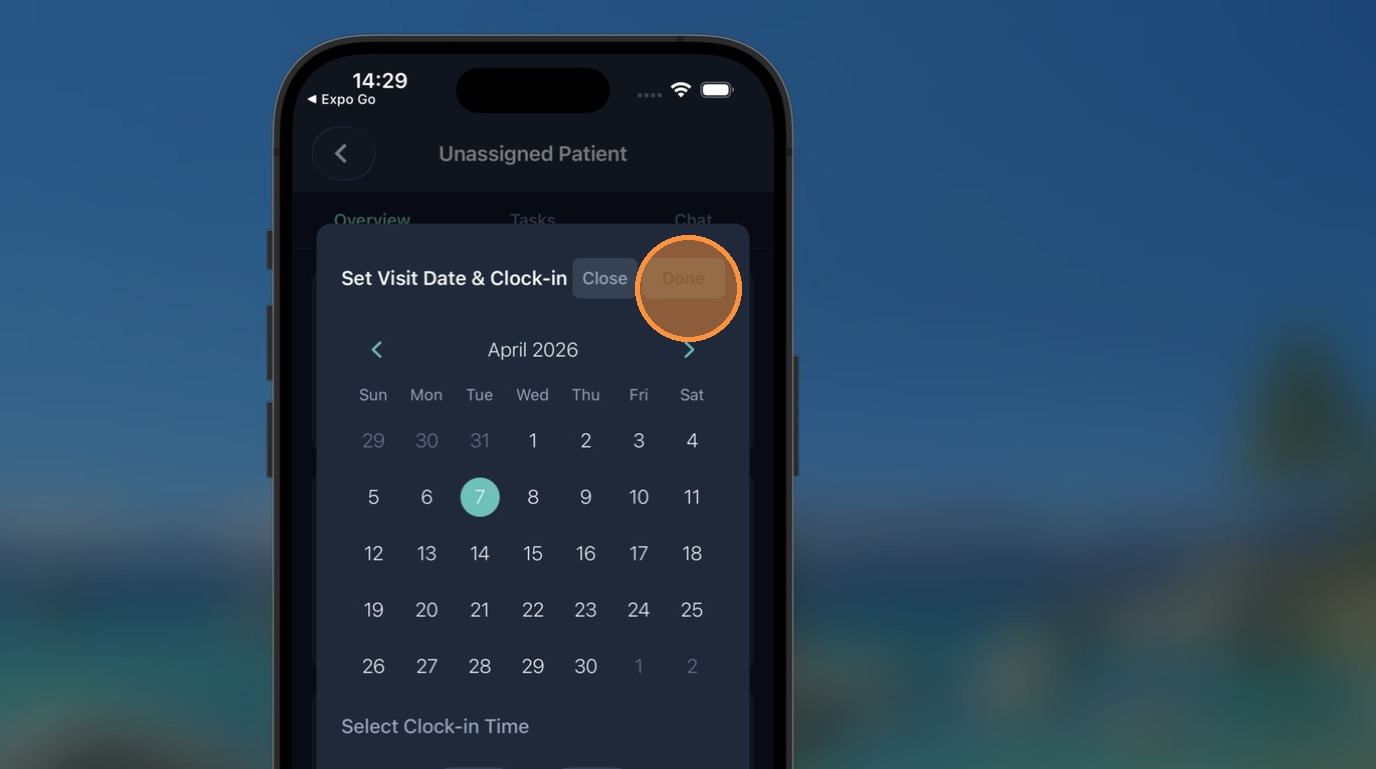
Completing Documentation
View step-by-step documentAlert: Heads up! You cannot enter information into a document that belongs to a completed visit.
Tap on ‘Tasks’ to see the patient’s documents to be filled.
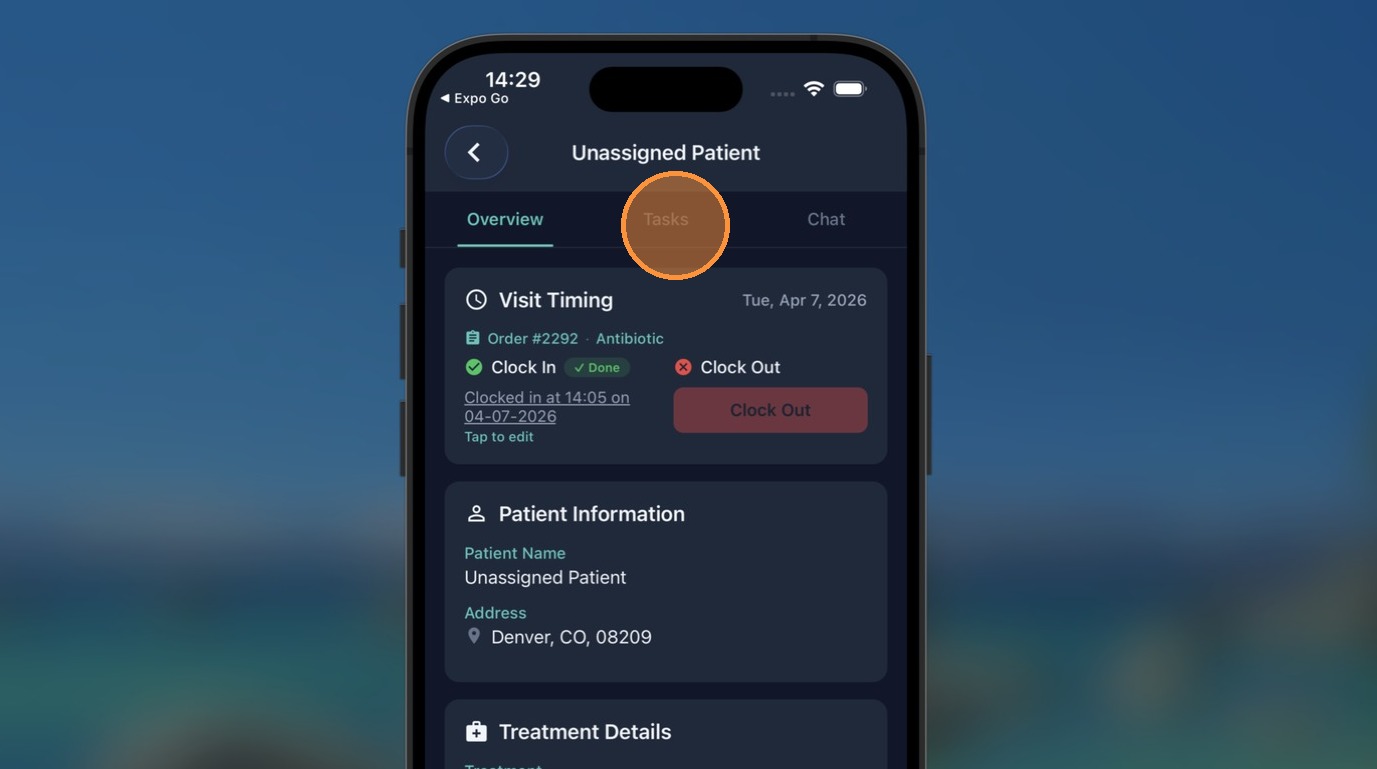
Tap on a document to view.
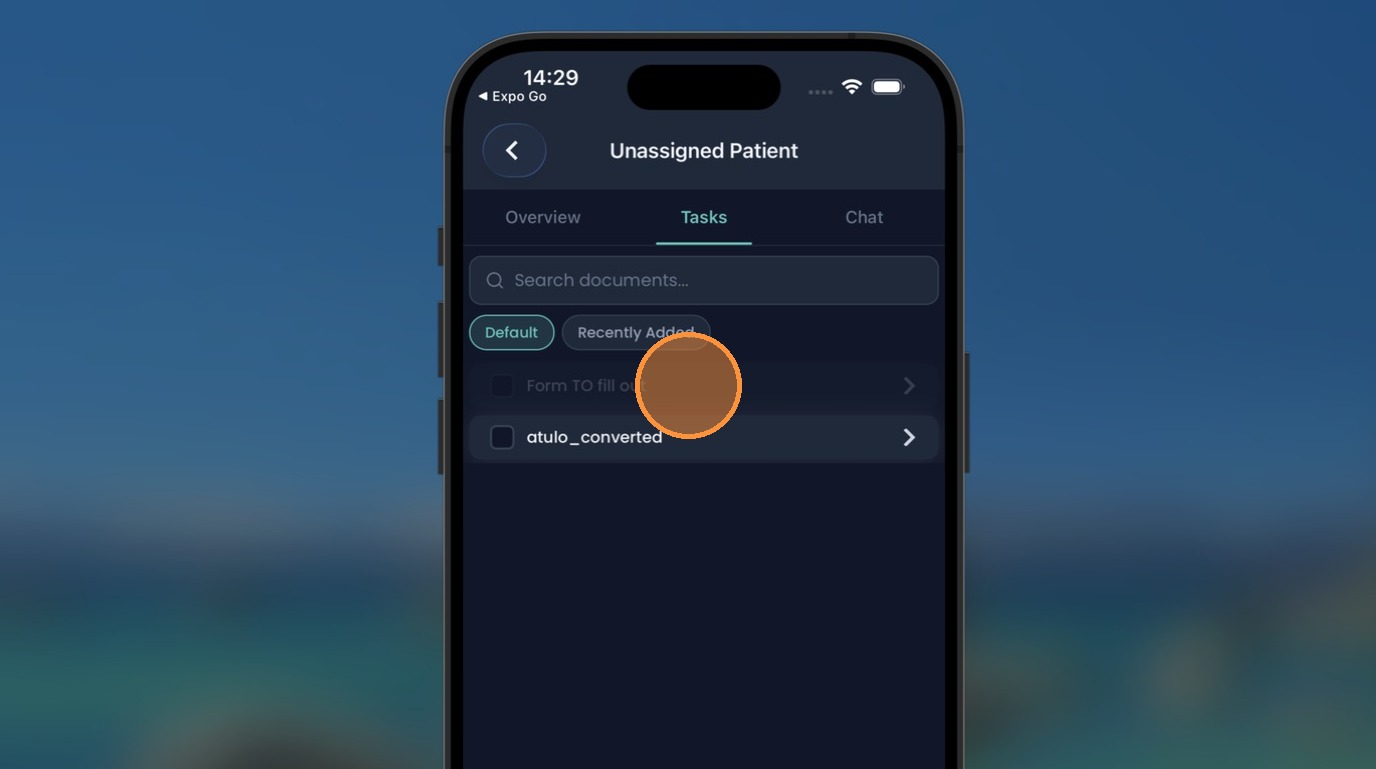
Fill in the information needed.
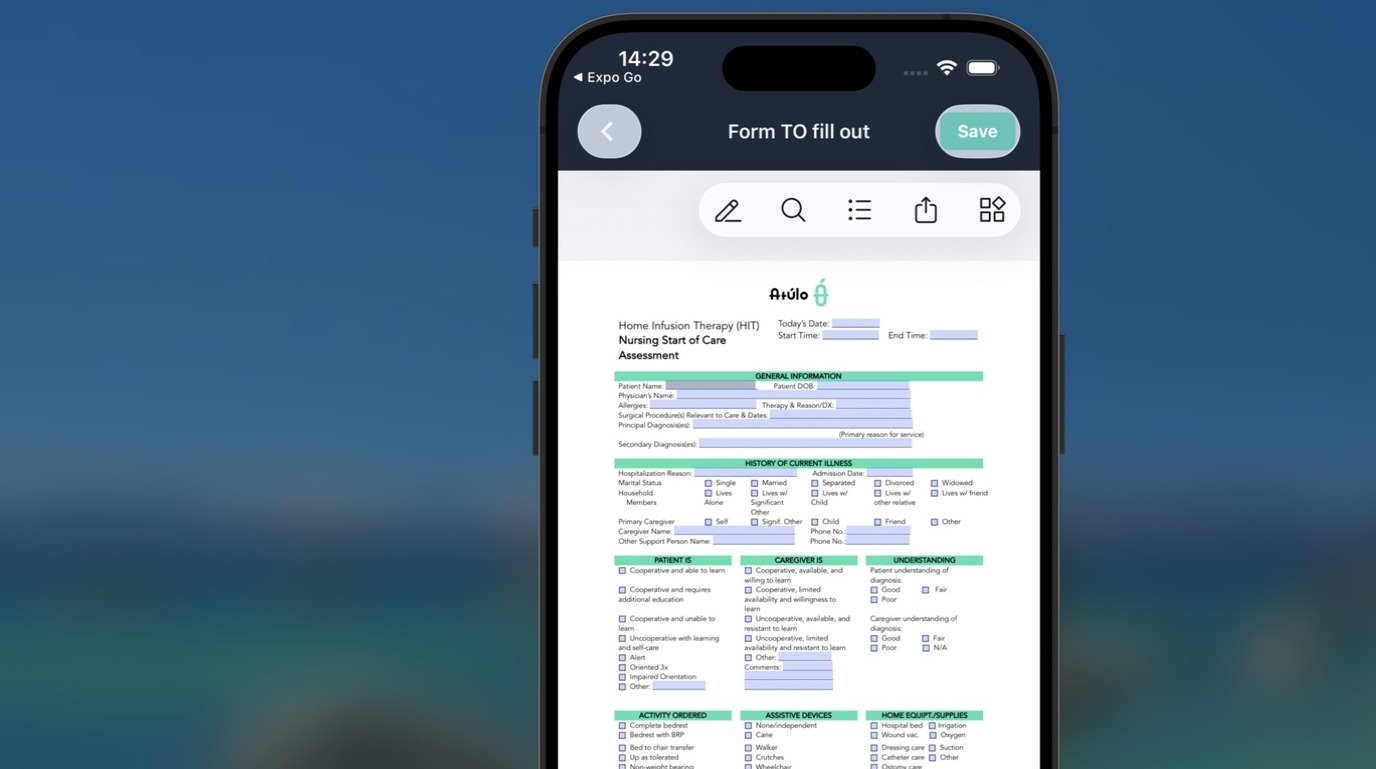
Hit the save button.
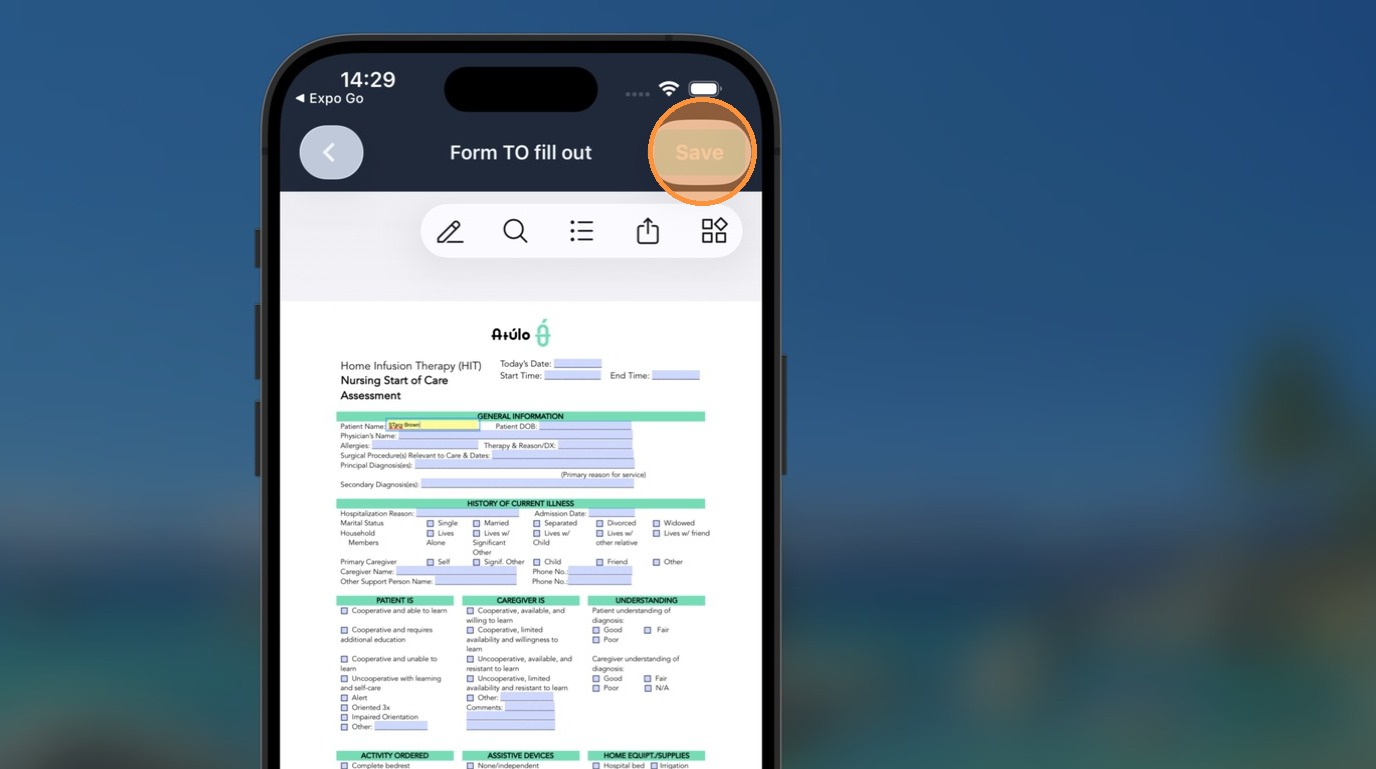
Hit ‘Okay’ and tap on the ‘‹’ arrow to return to the document list.
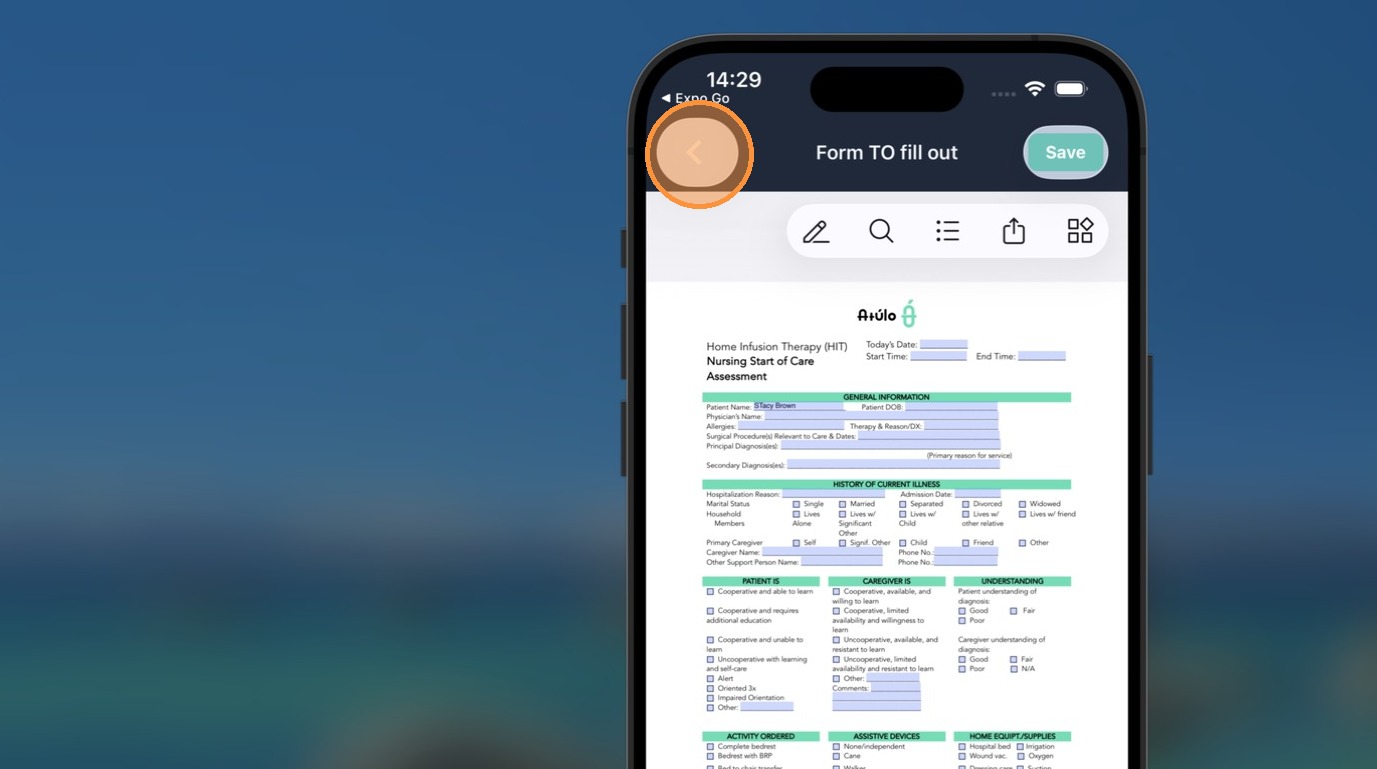
Tap on ‘Overview’ to return to the Treatment Overview screen.
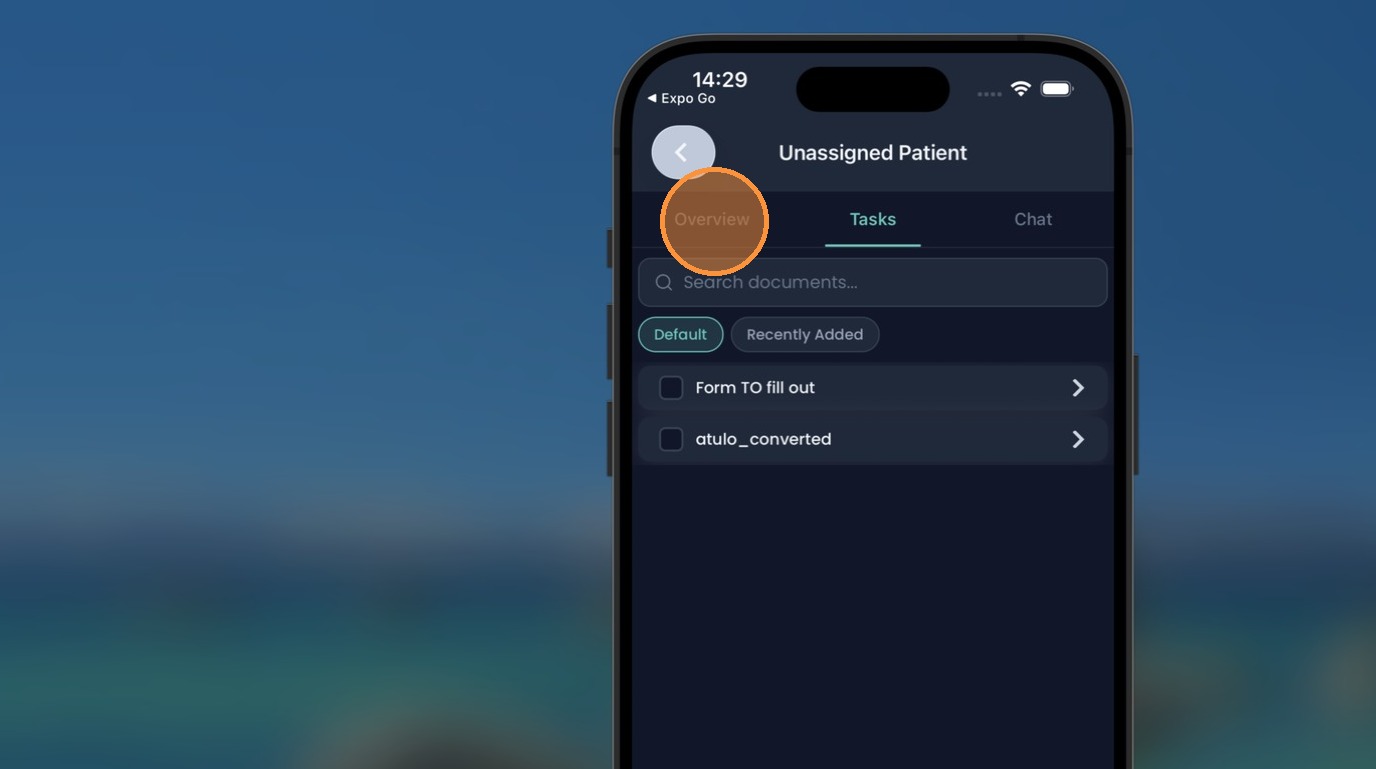
Nurse to Atulo Center Chat
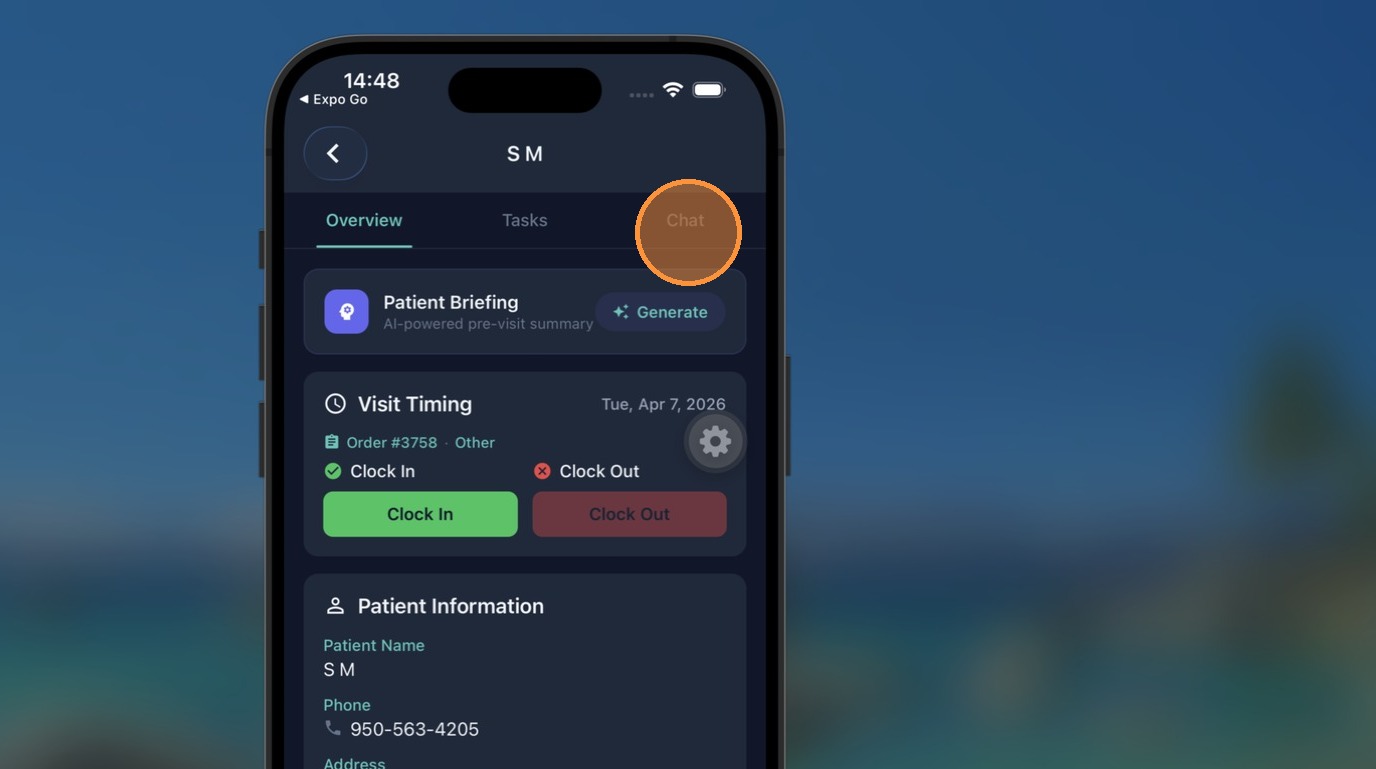
View step-by-step documentTip: You are able to communicate with Atulo Center (managers).
In the Overview screen, tap on ‘Chat’. Note this particular chat is explicitly based on this visit.
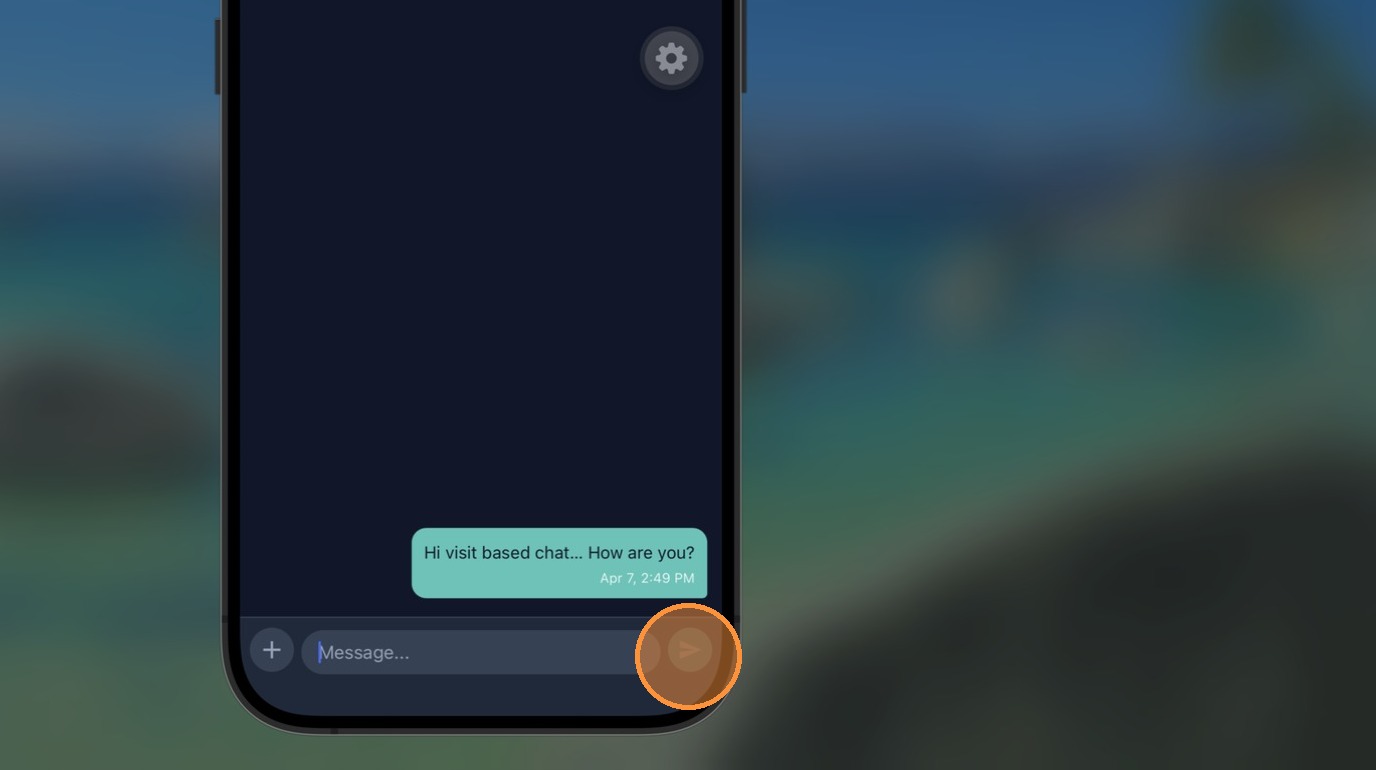
Type in your message and hit the arrow button to send.
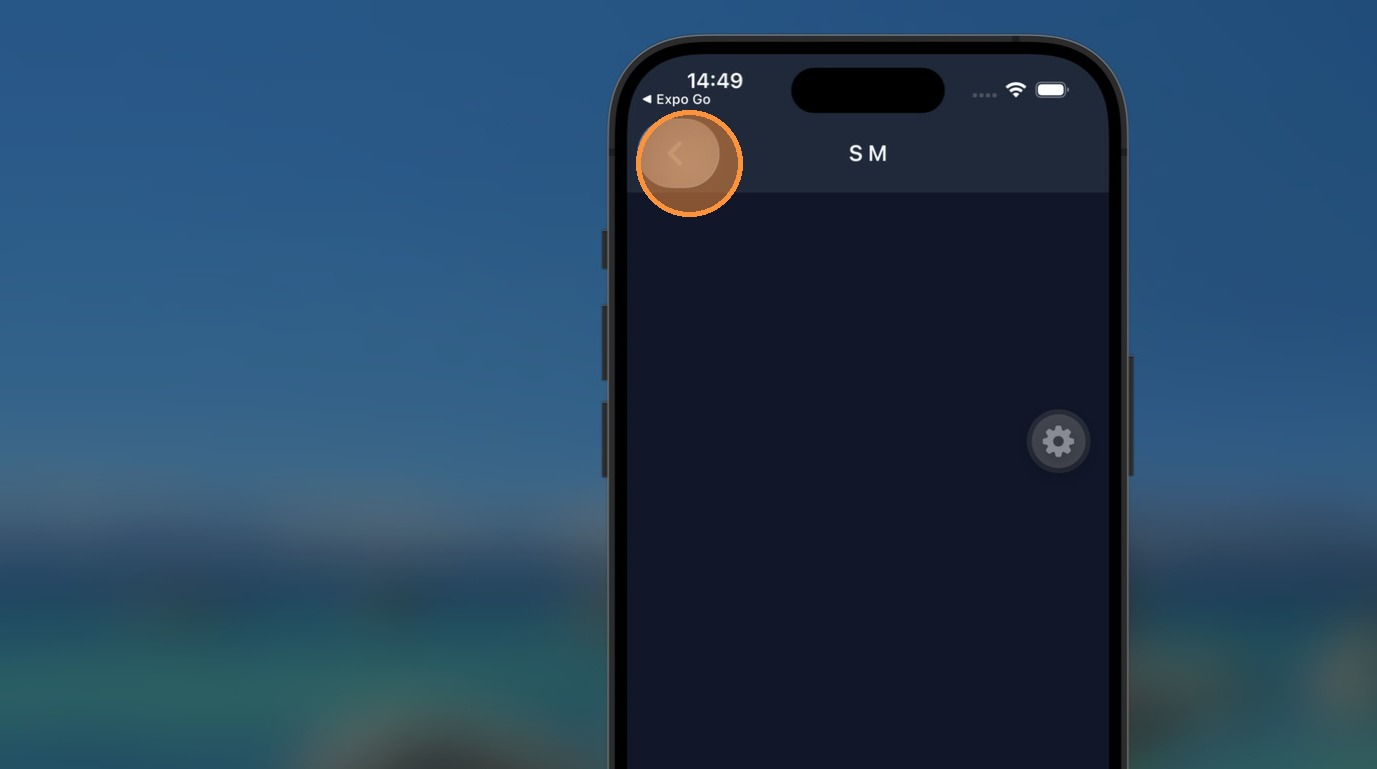
Return to Home Screen.
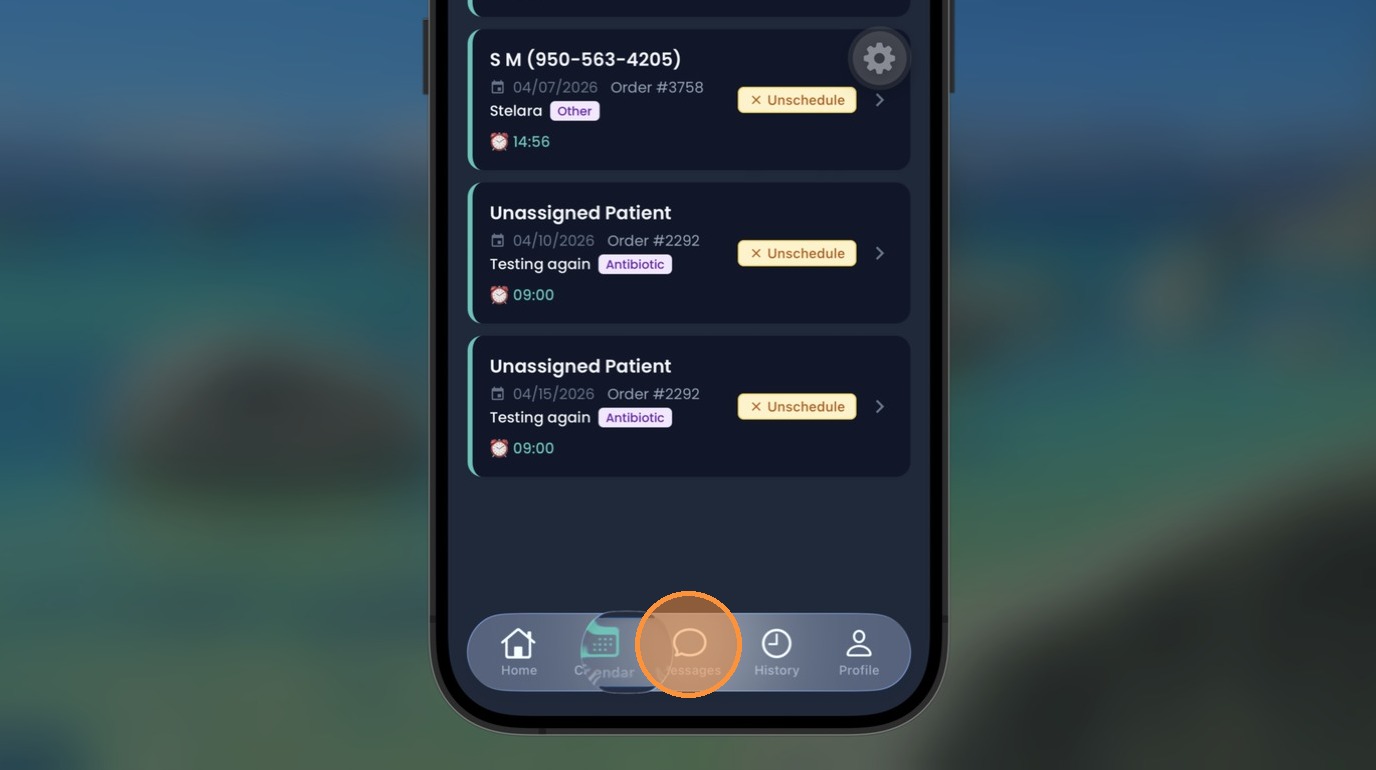
Tap on ‘Messages’ below.
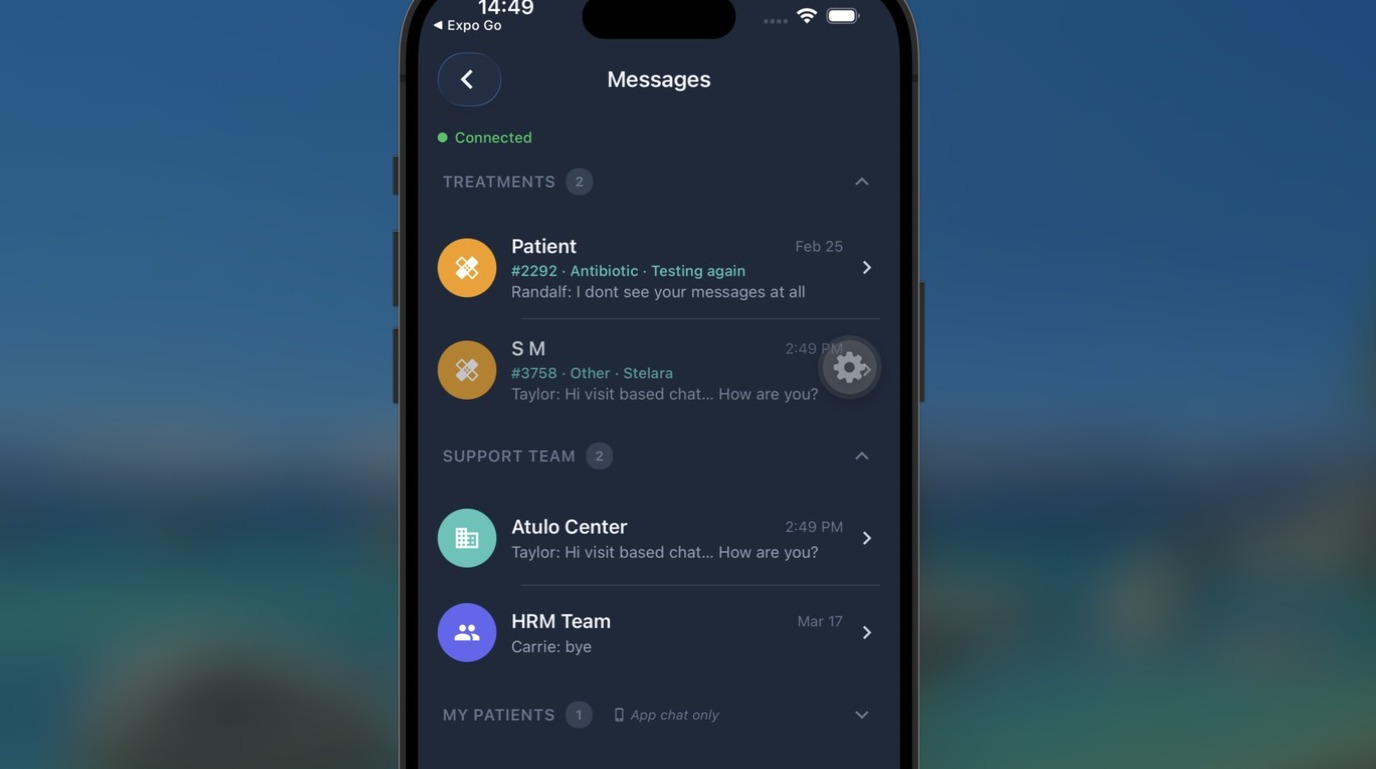
On the Message screen, see groupings of messages. Tap on ‘Atulo Center’.
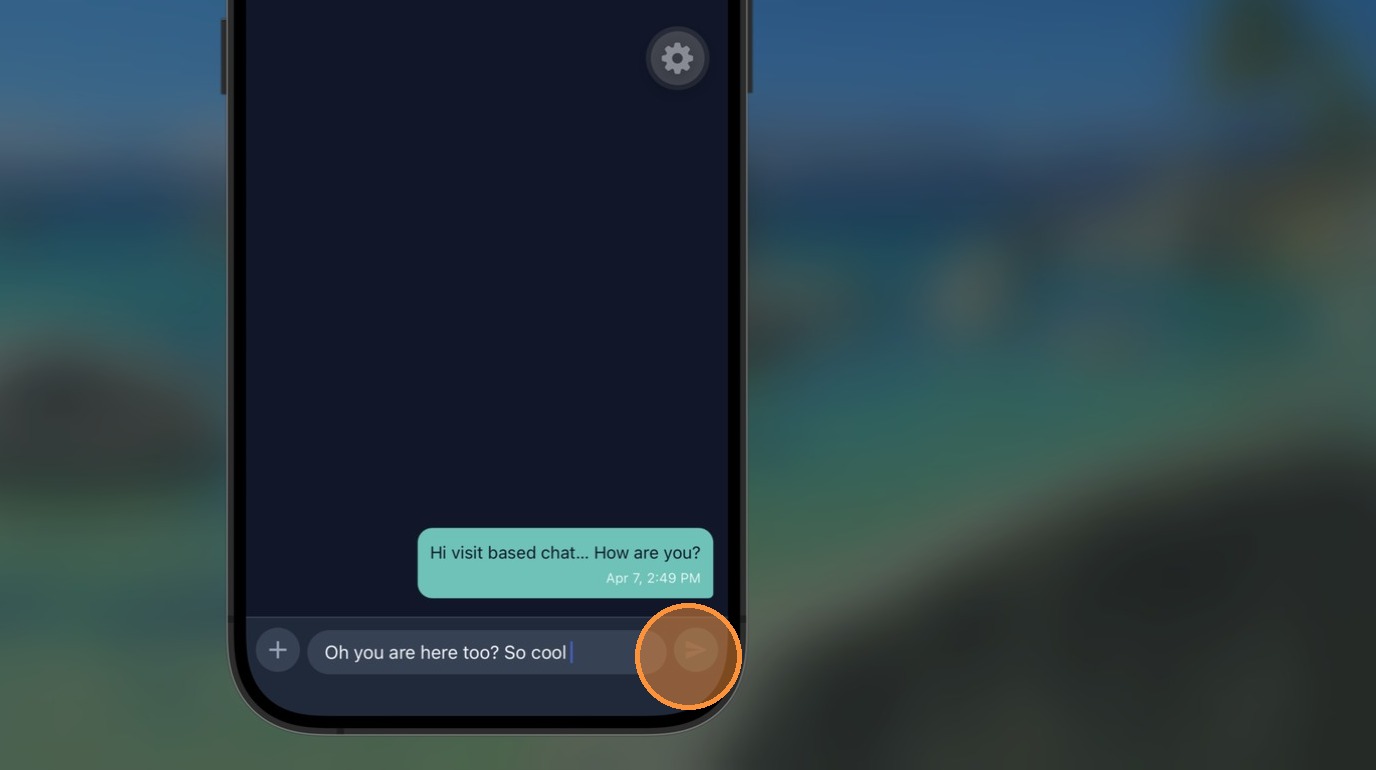
Send your message and hit the send button.
Nurse to Patient Chat
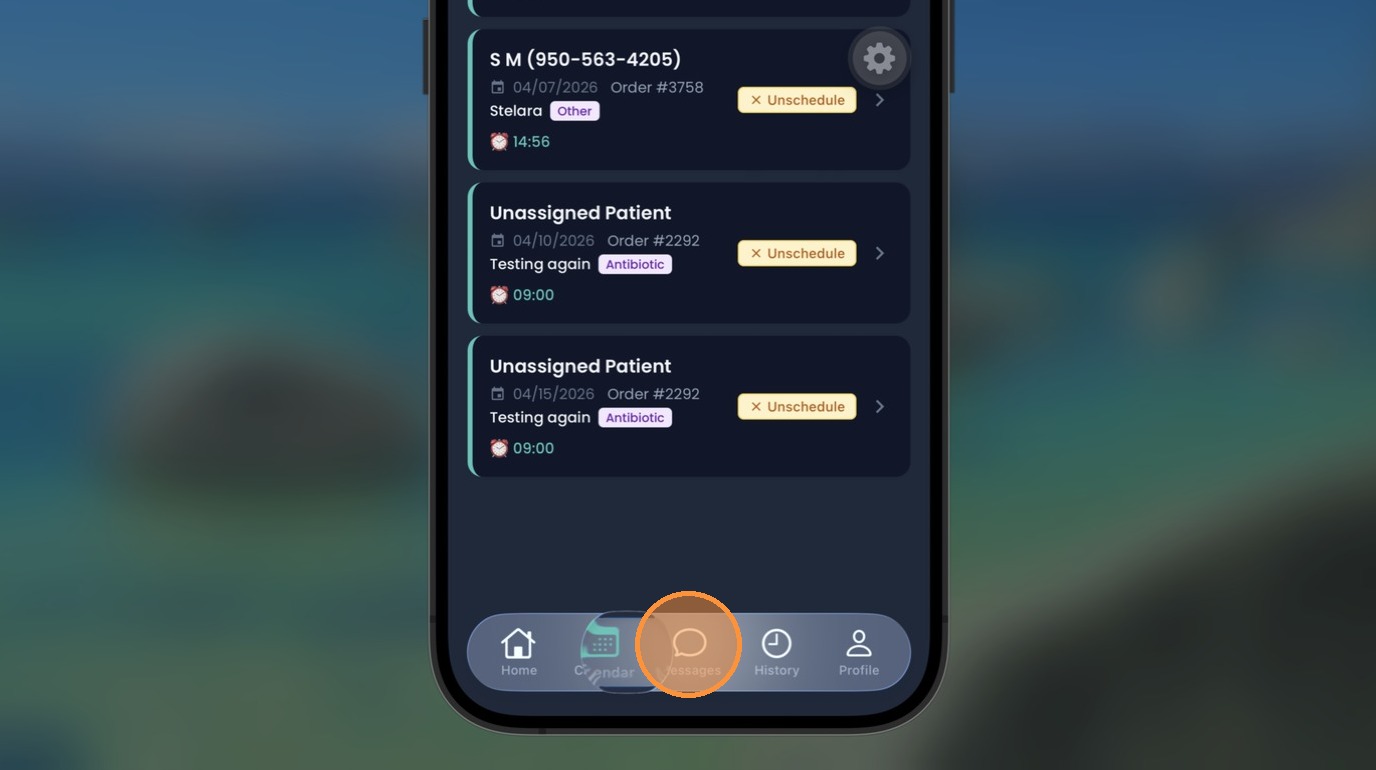
View step-by-step documentSame as ‘Atulo Center’ — tap on ‘Messages’ below.
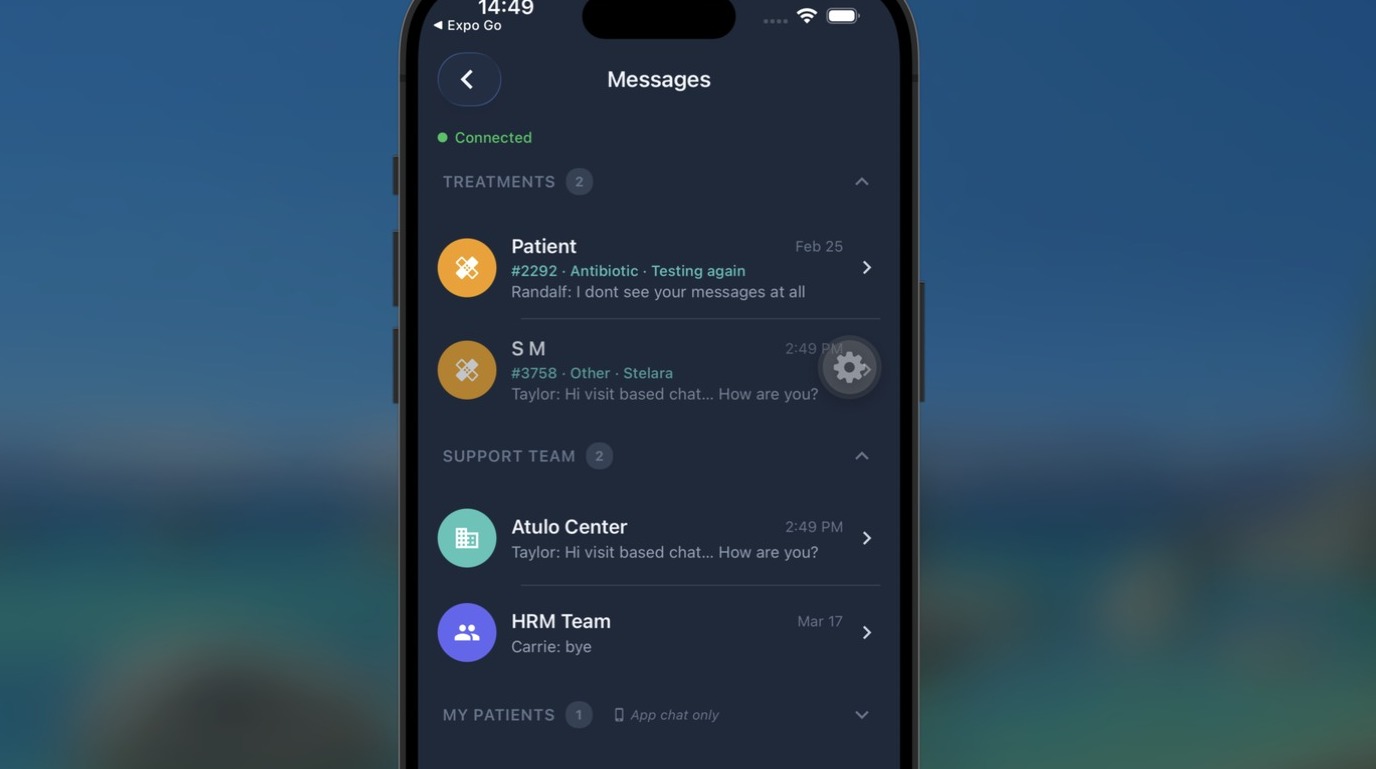
On the Message screen, see groupings of messages. Tap on any chat.
Clocking out & Completing Visit
View step-by-step documentTip: Manage a visit by clocking out and completing when done with your patient for that period of time.
Alert: Heads up! A completed visit CANNOT be ‘uncompleted’. Be sure you’ve got everything right.
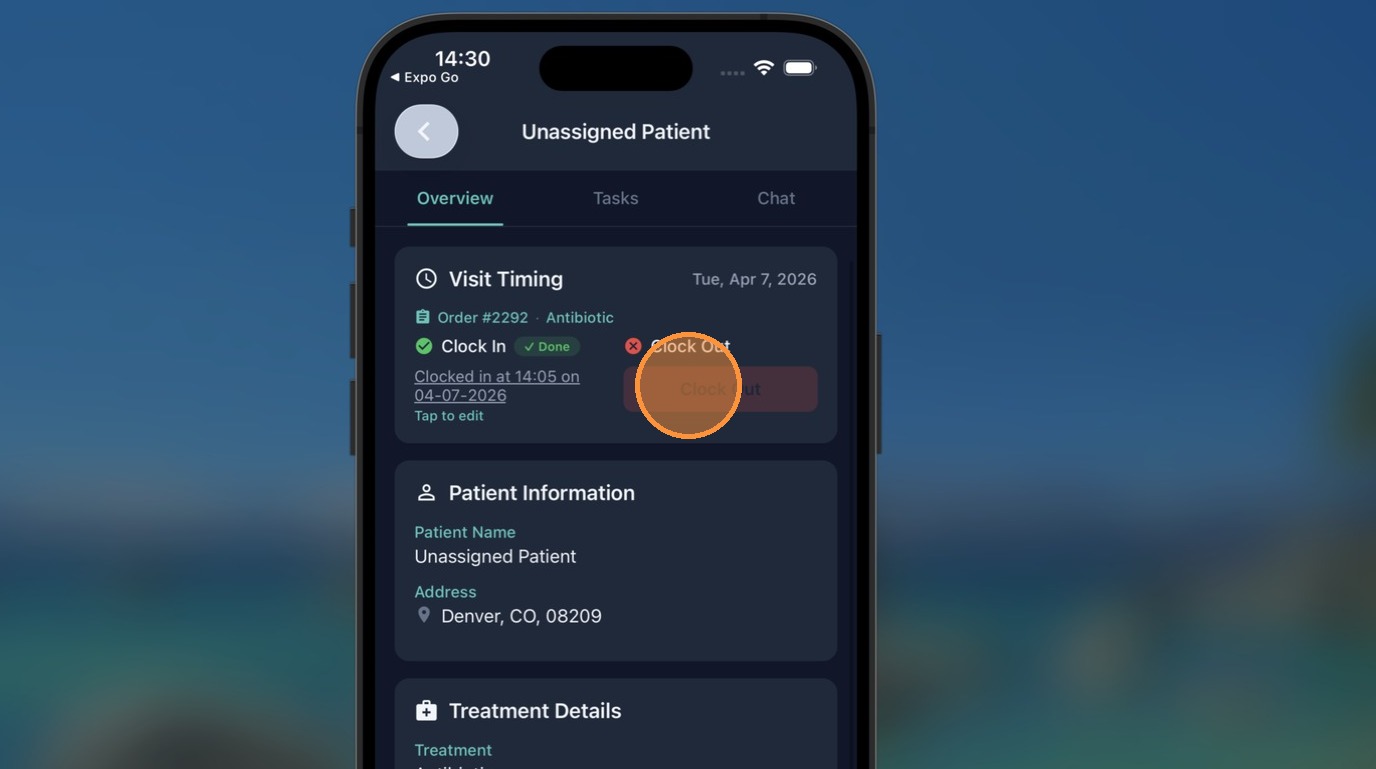
Tap ‘Clock out’ to pick your time.
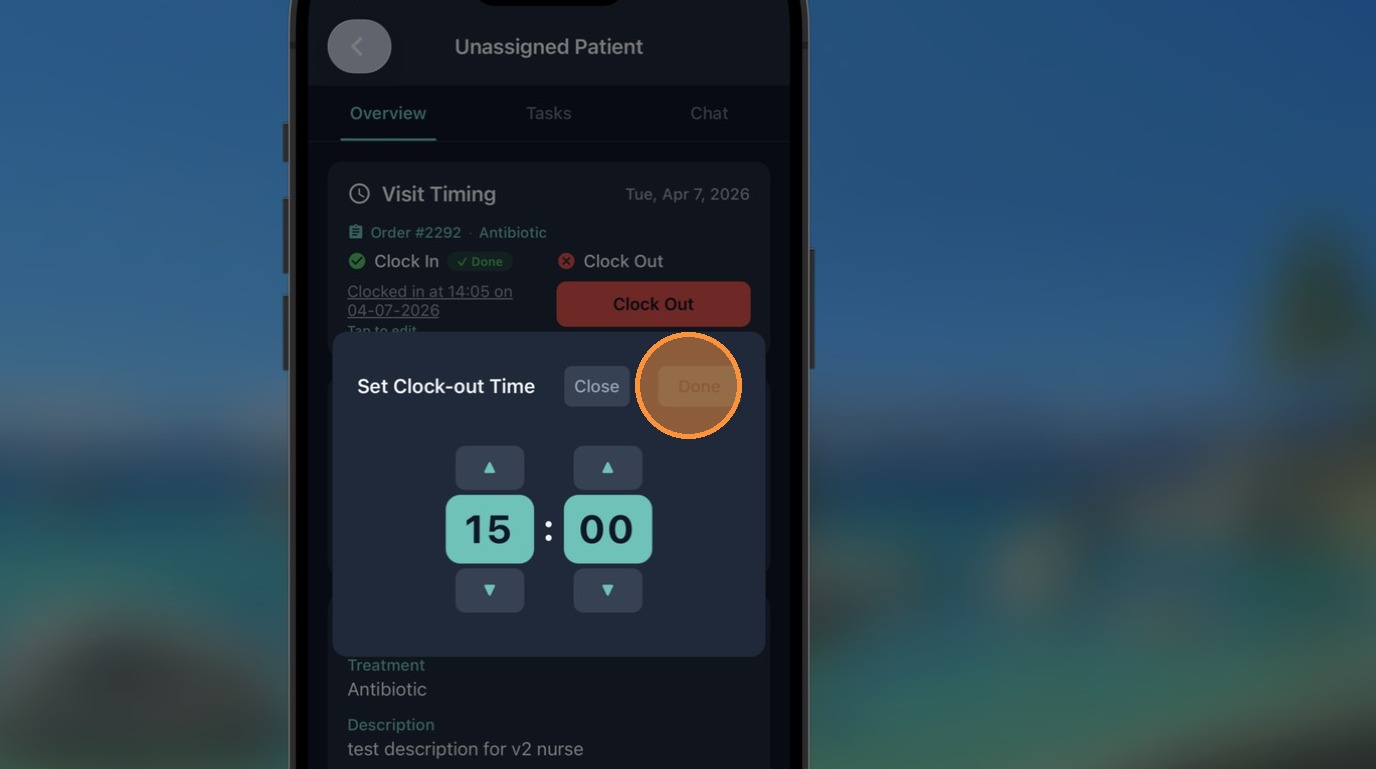
Select appropriate time and hit ‘Done’.
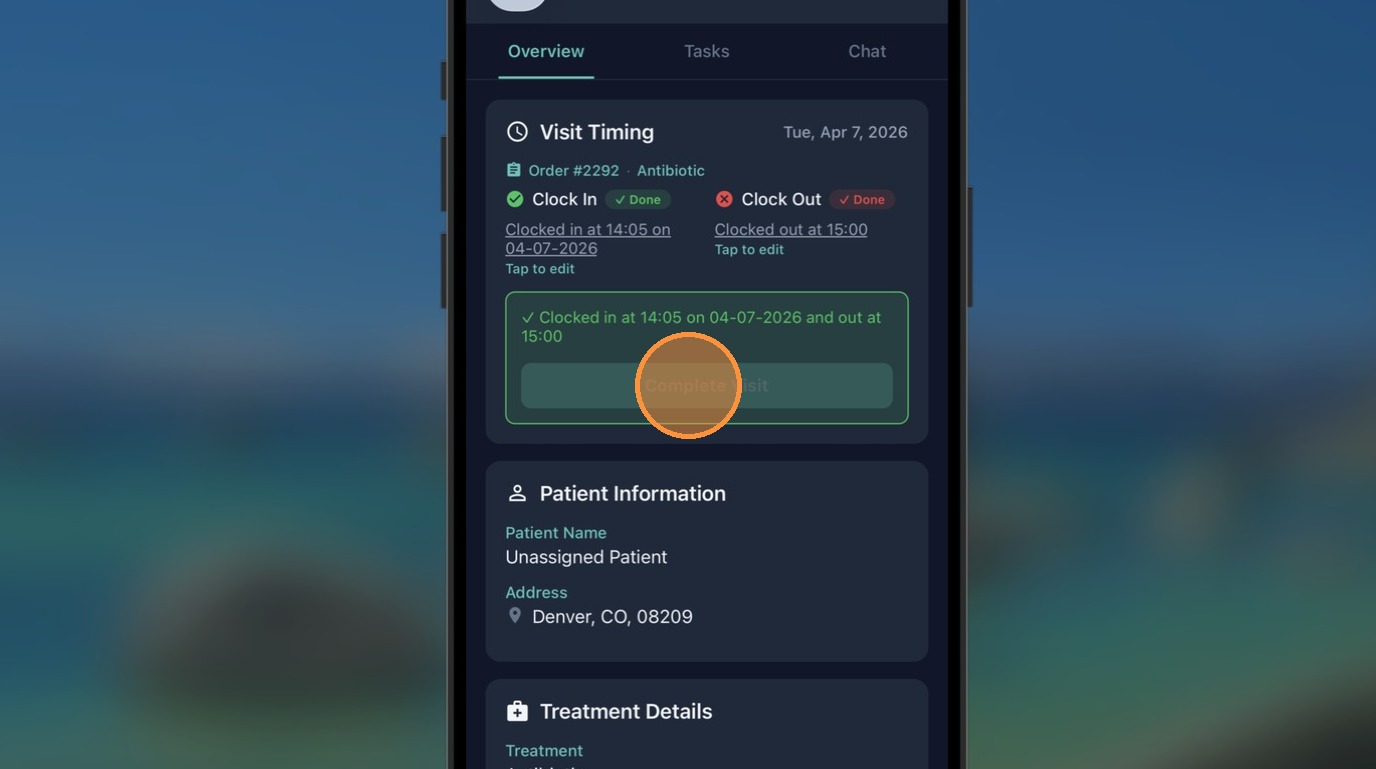
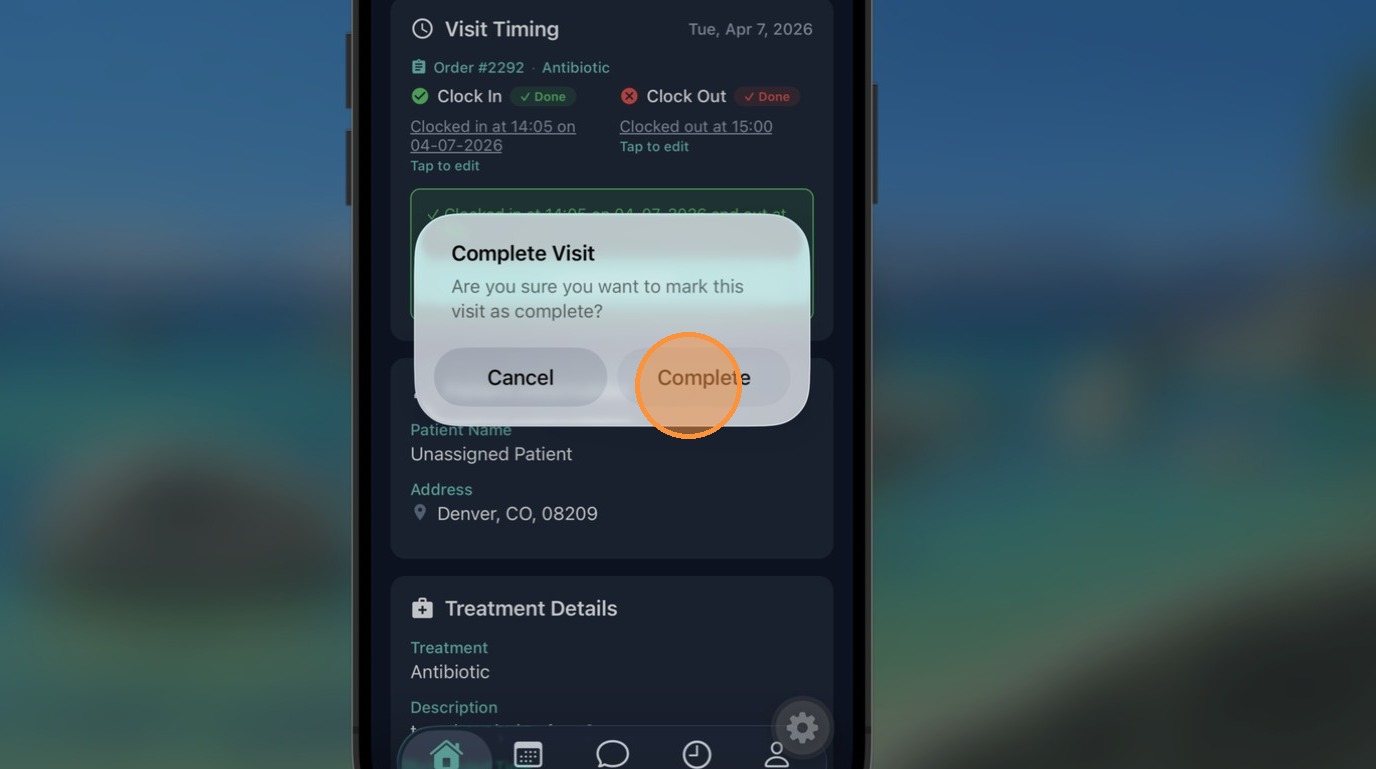
You must tap on ‘Complete Visit’ to mark the visit done in the system.
Tap on ‘Complete’ to proceed.
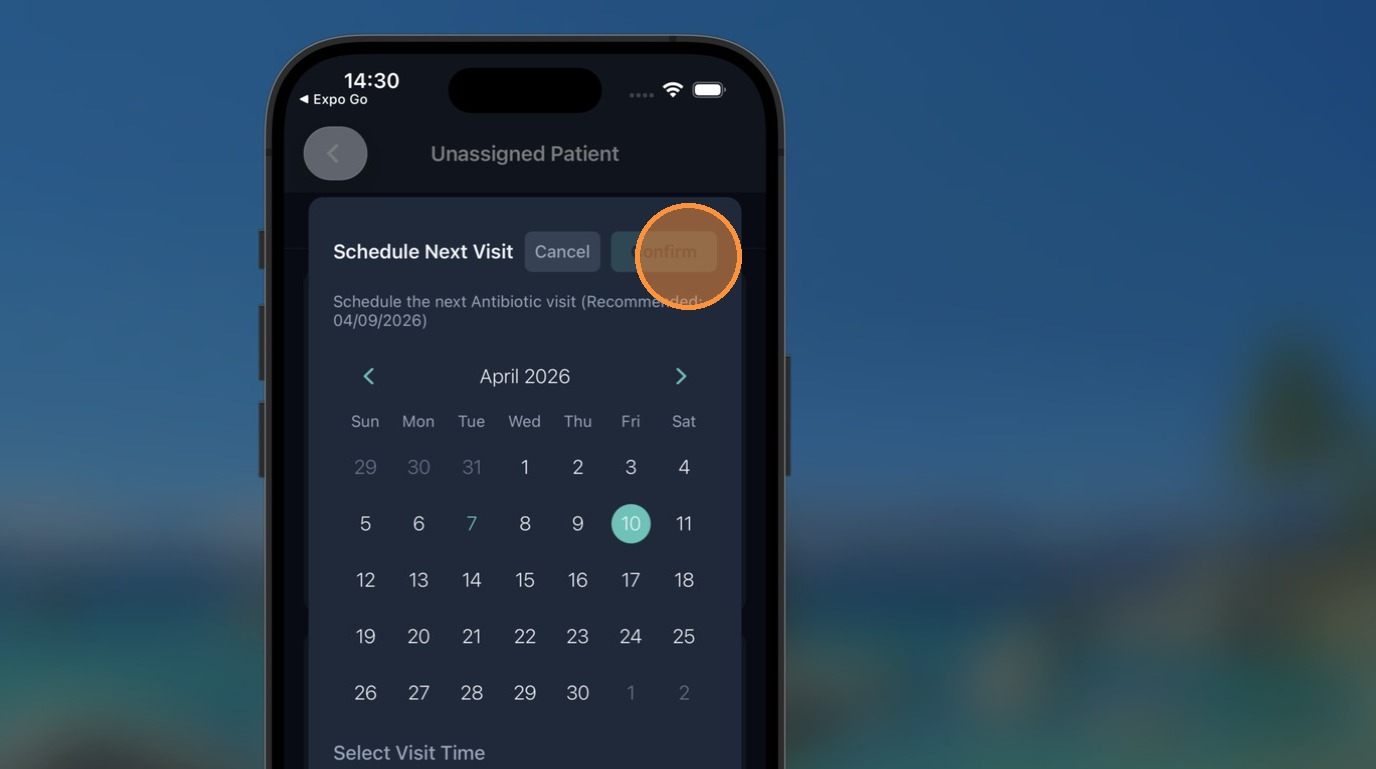
If you have at least one pending visit you will be required to schedule that visit before completion is recorded.
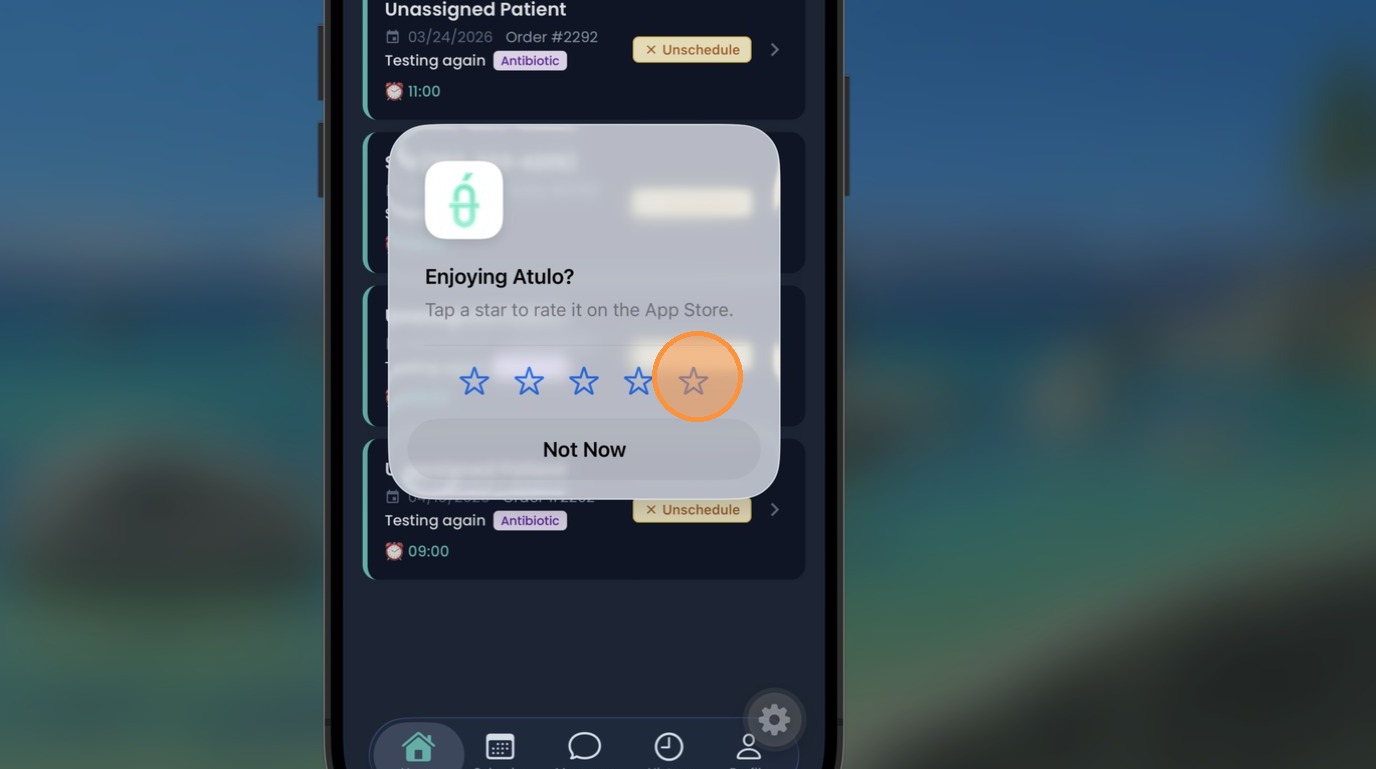
Rating Atulo app
View step-by-step documentTip: Rate us 5 stars because YOU are amazing. 🤩
Tap on a star.
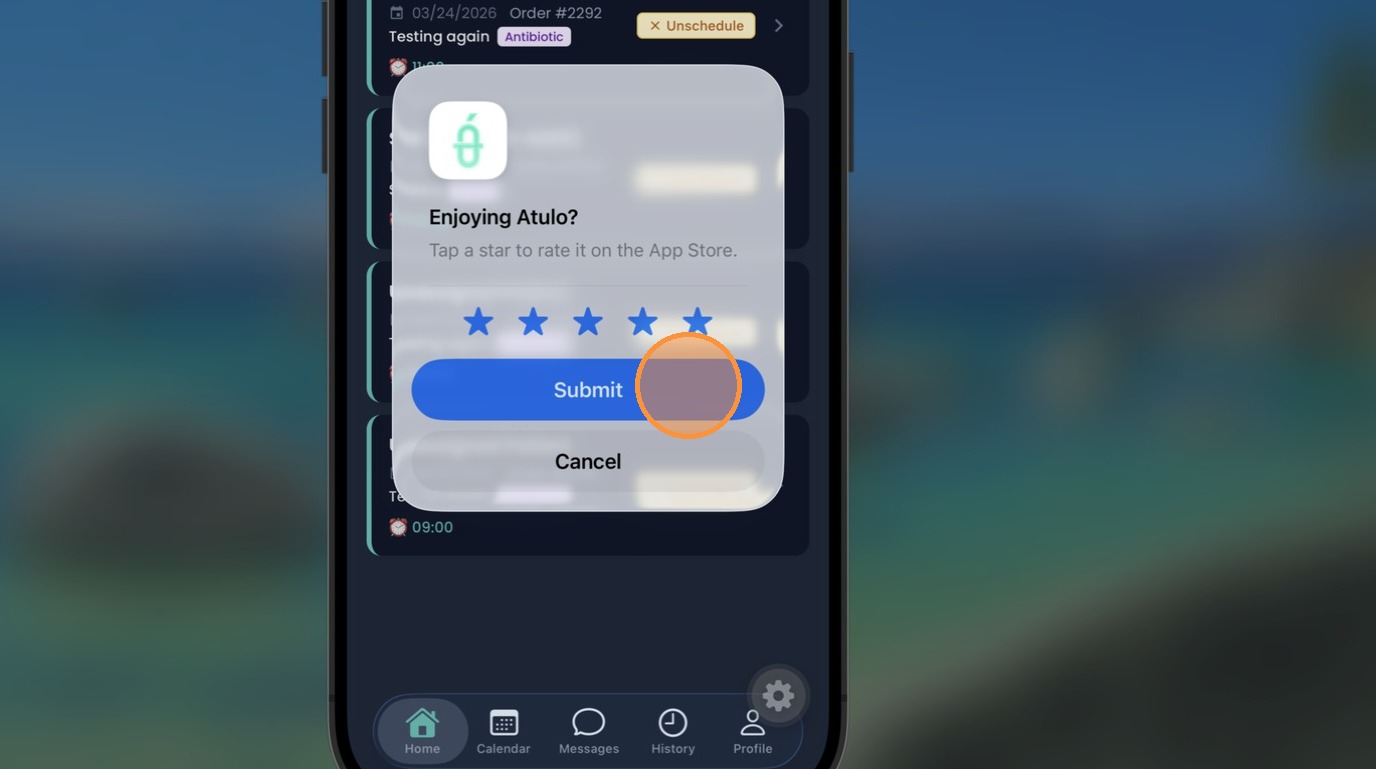
Hit submit. Voila!
App Notifications
View step-by-step documentTip: You will receive push notifications for new messages from HRM, Atulo Center, or your Patients. The badge count on the app icon shows how many unread notifications you have.
This means you have four (4) new or unread notifications (message from HRM, Atulo Center or your Patients). Tap to open message screen.

However if your phone is locked, then you will see the messages on your lock screen. Again, tap on any to take you to the message screen.

HR to Nurse Broadcast
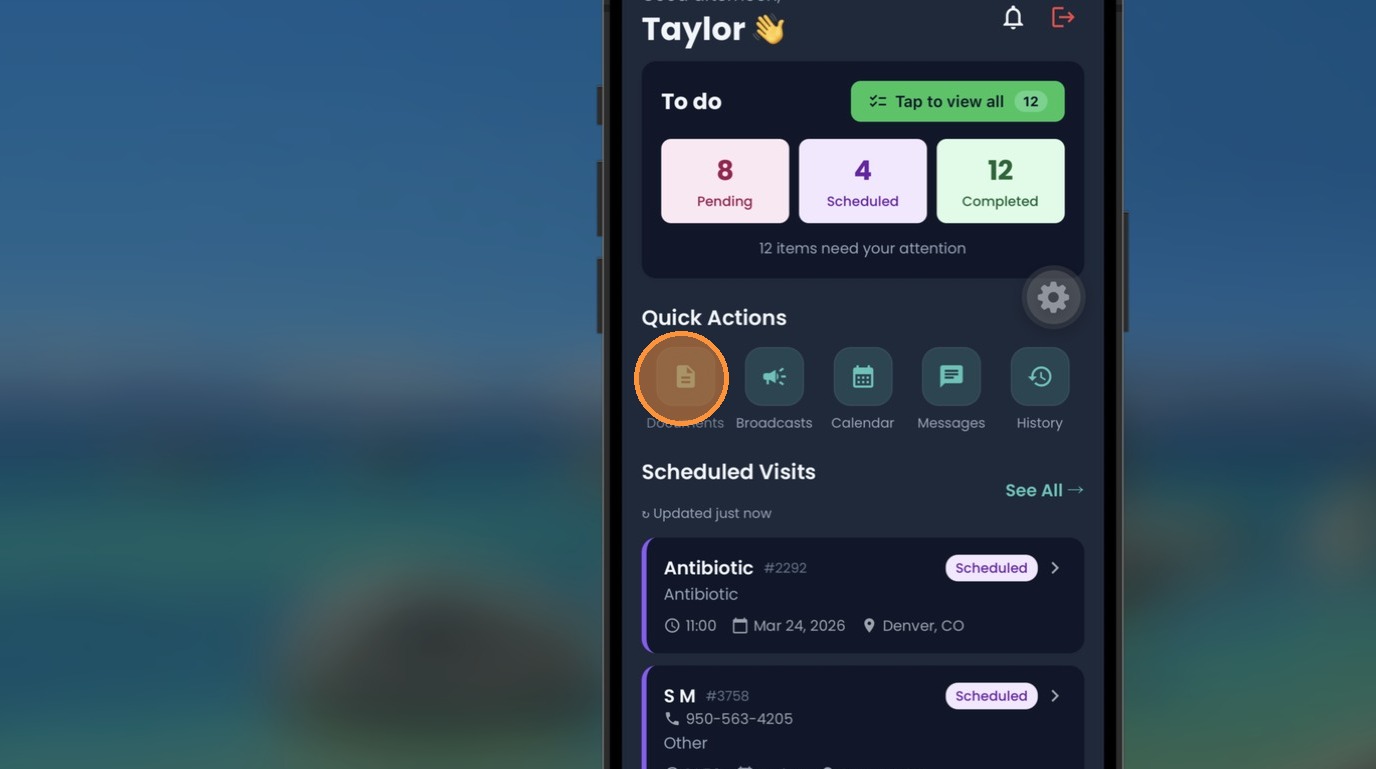
View step-by-step documentTip: With this feature you are able to receive broadcasts. It may include notifications asking you to provide some credentialing documents for your profile.
On the Home Screen, tap on 'Broadcast'.
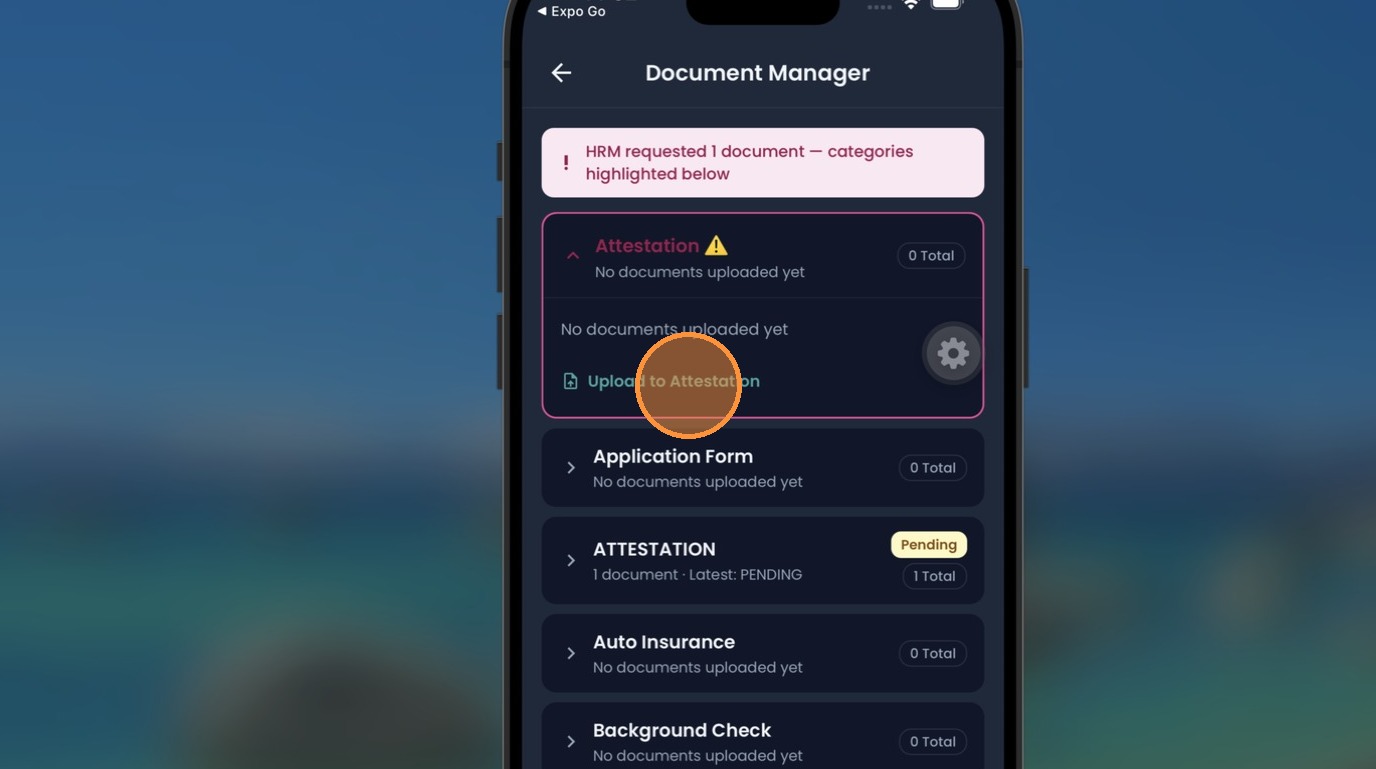
Broadcast screen showing you what you need to do. Select to upload the document you have been asked to provide.
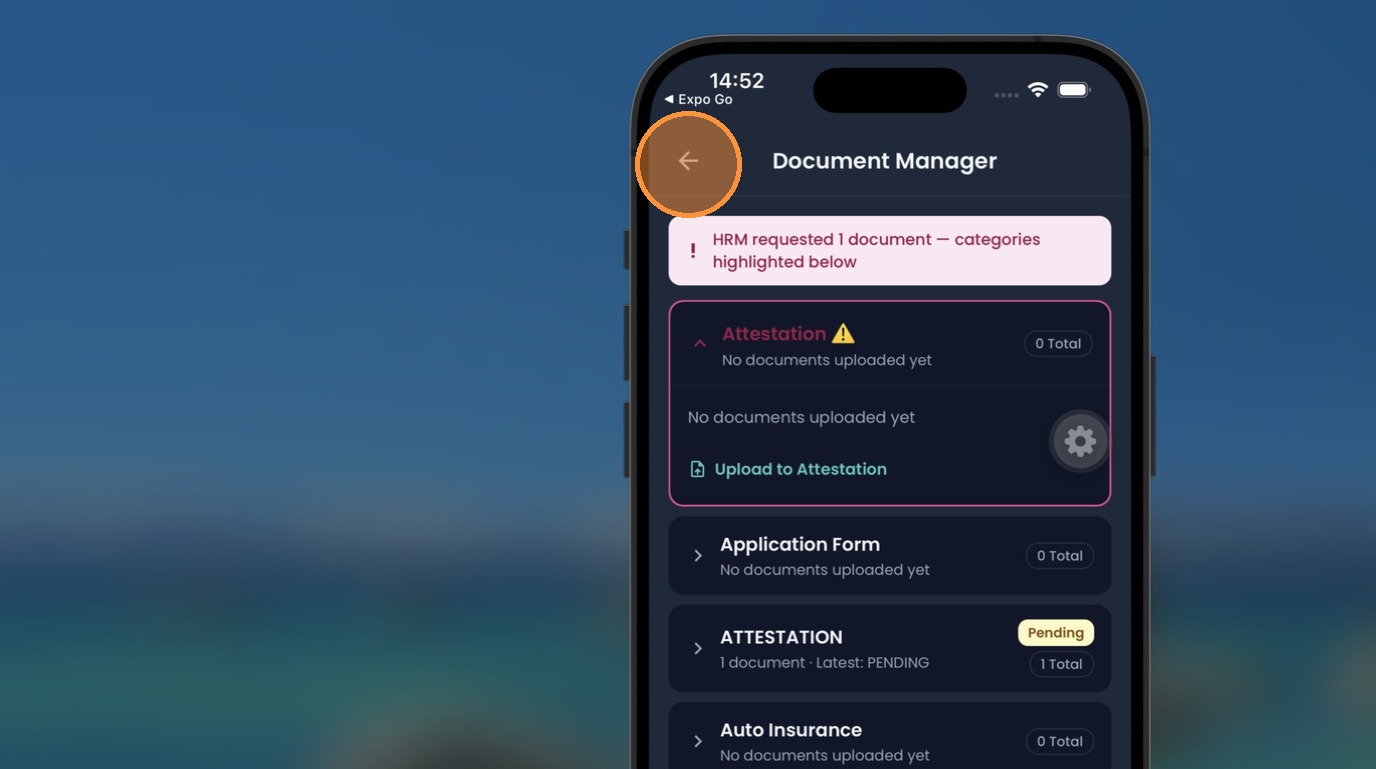
Tap to return to Home Screen.
Documentation Forms: SOC vs Ongoing
Tip: First visit with Atulo? Yes = SOC (Start of Care). No = Ongoing Visit. The forms you complete depend on this AND on the patient's pharmacy.
Alert: Always check the medication-specific forms for BOTH SOC and ongoing visits.
Tip: Extra forms are supplemental and NOT required for every visit. Use them only if the situation applies.
Alert: Complete your documentation during the visit or within 24 hours.
AmeriPharma Forms
Tip: SOC (first visit): AmeriPharma Start of Care Nursing Documentation.
Tip: Ongoing visit: AmeriPharma Ongoing Nursing Documentation.
Tip: Extra (only if needed): Missed Visit Form.
AOM Forms
Tip: SOC (first visit): Consent, Advanced Directives, Plan of Care/Treatment, and Atulo SOC.
Tip: Ongoing visit: Atulo Ongoing.
Tip: Extra (only if needed): Medication Profile, Narrative, Missed Visit.
Biomatrix Forms
Tip: SOC (first visit): IVIG Adult/Pediatric Form, Plan of Care/Treatment, Therapy Administration Report, plus Nulojix SOC if applicable.
Tip: Ongoing visit: Therapy Administration Report, IVIG Adult/Pediatric Form, plus Nulojix Ongoing if applicable.
Tip: Extra (only if needed): Medication Profile, Narrative, Missed Visit.
CSI Forms
Tip: Every infusion: SOC/Ongoing Infusion Form.
Tip: SCIG visits: SCIG Form.
Tip: SOC (first visit): Plan of Care, if applicable.
Tip: Condition-specific, used for BOTH SOC and ongoing: PIDD/CVID/CIPD immune deficiency documentation; IROD Disability Assessment (treatment response); GI Outcomes (GI symptom monitoring); MG ADL (symptom/function monitoring); Myositis Form (symptom progression monitoring).
Tip: Extra (only if needed): Medication Profile, Narrative, Missed Visit, plus a one-time Pooling Waiver if IVIG pooling.
Infucare Forms
Tip: SOC (first visit): Infucare SOC Form and Plan of Care/Treatment.
Tip: Vyvgart: Attestation (SOC), Flowsheet (SOC and ongoing), plus the Ongoing note on ongoing visits only.
Tip: Entyvio, Infliximab, Ocrevus, Rituxan, Skyrizi, Stelara, Tremfya, Vyepti, Ultomiris: Flowsheet (SOC and ongoing), plus the Ongoing note on ongoing visits only.
Tip: Imaavy: Flowsheet (SOC and ongoing).
Tip: Extra (only if needed): Medication Profile, Narrative, Missed Visit.
Nufactor Forms
Tip: Monoclonal Antibodies Form for: Soliris, Inflectra, Rituxan, Simponi Aria, Remicade, Renflexis.
Tip: Immunoglobulin Form for: IVIG.
Tip: Miscellaneous Form for: all other drugs.
Specialty RX Forms
Tip: SOC (first visit): Adult or Pediatric Assessment, and Plan of Care/Treatment.
Tip: Ongoing visit: Adult or Pediatric Assessment.
Tip: Extra (only if needed): Narrative.
Other Pharmacies Forms
Tip: SOC (first visit): Atulo SOC and Plan of Care/Treatment.
Tip: Ongoing visit: Atulo Ongoing.
Tip: Extra (only if needed): Medication Profile, Narrative, Missed Visit.